> For the complete documentation index, see [llms.txt](https://docs.crewcost.com/llms.txt). Markdown versions of documentation pages are available by appending `.md` to page URLs; this page is available as [Markdown](https://docs.crewcost.com/documentation/accounting-configuration/cost-types.md).
# Cost Types
Cost Types in CrewCost define the categories used to classify job costs, such as labor, materials, equipment, subcontracts, and other direct expenses. Each Cost Type is linked to a specific account in the chart of accounts, allowing job costs to be recorded and tracked accurately across projects.
### Access Cost Types Settings
Navigate to the Cost Types settings to view and manage existing entries.
1. Click **Settings** in the left navigation menu.
2. Click **Other** under the Settings submenu.
3. Click **Cost Types** under the **Job Costing** section.
### Create a Cost Type
Follow the steps below to add a new Cost Type to the system.
1. Click **+ New Cost Type** in the top right corner of the **Cost Types** page.
2. Enter a name in the **Cost Type** field.
3. Click the **Account** field and select the appropriate expense account from the dropdown list.
4. Click **Save** to apply your preferences.
### Edit a Cost Type
Follow the steps below to modify an existing Cost Type.
1. Locate the **Cost Type** you want to edit in the active list.
2. Click the **pencil icon** in the **Actions** column for that entry.
3. Update the **Cost Type** name or the linked **Account** as needed.
4. Click **Save**.
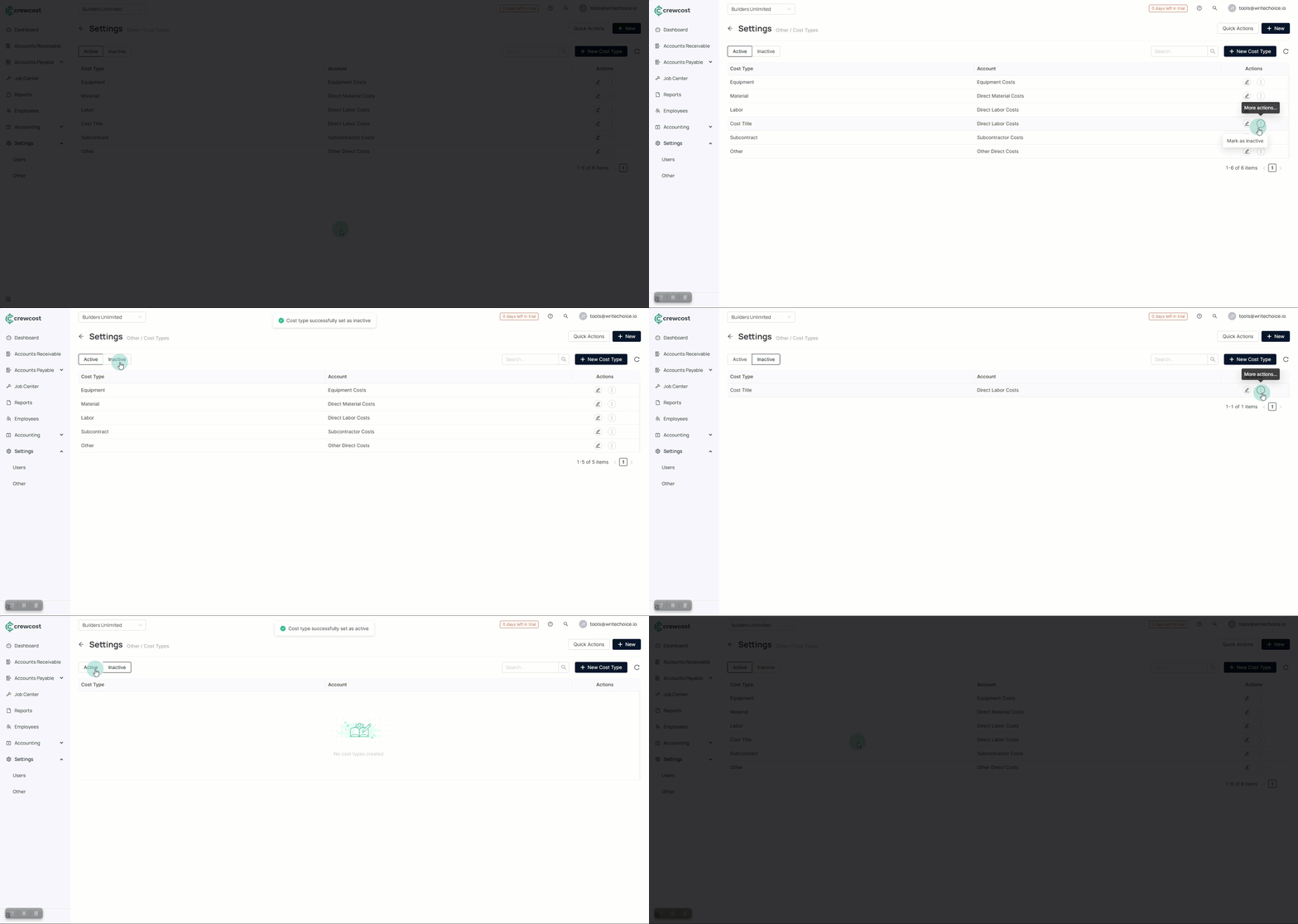
### Deactivate and View Inactive Cost Types
Follow the steps below to mark a Cost Type as inactive and review those that have been deactivated.
1. Locate the Cost Type you want to deactivate in the active list.
2. Click the **three-dot icon** in the **Actions** column for that entry.
3. Click **Mark as inactive**.
4. Click the **Inactive** tab at the top of the list to review inactive Cost Types and mark them as active again if necessary.
{% hint style="info" %}
Inactive Cost Types are removed from the active list and are no longer available for selection in job costing workflows.
{% endhint %}
Keeping Cost Types accurate and up-to-date ensures that costs recorded across projects are correctly categorized and mapped to the appropriate accounts in your chart of accounts.
### See Also
Keep exploring our platform by taking the next step:
* [Add a Tax Rate](/documentation/accounting-transactions/add-a-tax-rate.md): CrewCost allows you to configure sales tax rates under the Accounting module. Once created, these rates are available for use across your accounting workflows.
* [Manage and Match Bank Transactions](/documentation/accounting-configuration/manage-and-match-bank-transactions.md): Review, add, match, transfer, or exclude banking transactions as needed.