> For the complete documentation index, see [llms.txt](https://docs.crewcost.com/llms.txt). Markdown versions of documentation pages are available by appending `.md` to page URLs; this page is available as [Markdown](https://docs.crewcost.com/documentation/general-settings/update-your-business-info.md).
# Update Your Business Info
Learn how to manage all your core business information in CrewCost. Keeping your contact info, tax details, and trade category up to date helps ensure your estimates, invoices, and financial reports remain consistent and reliable across the platform.
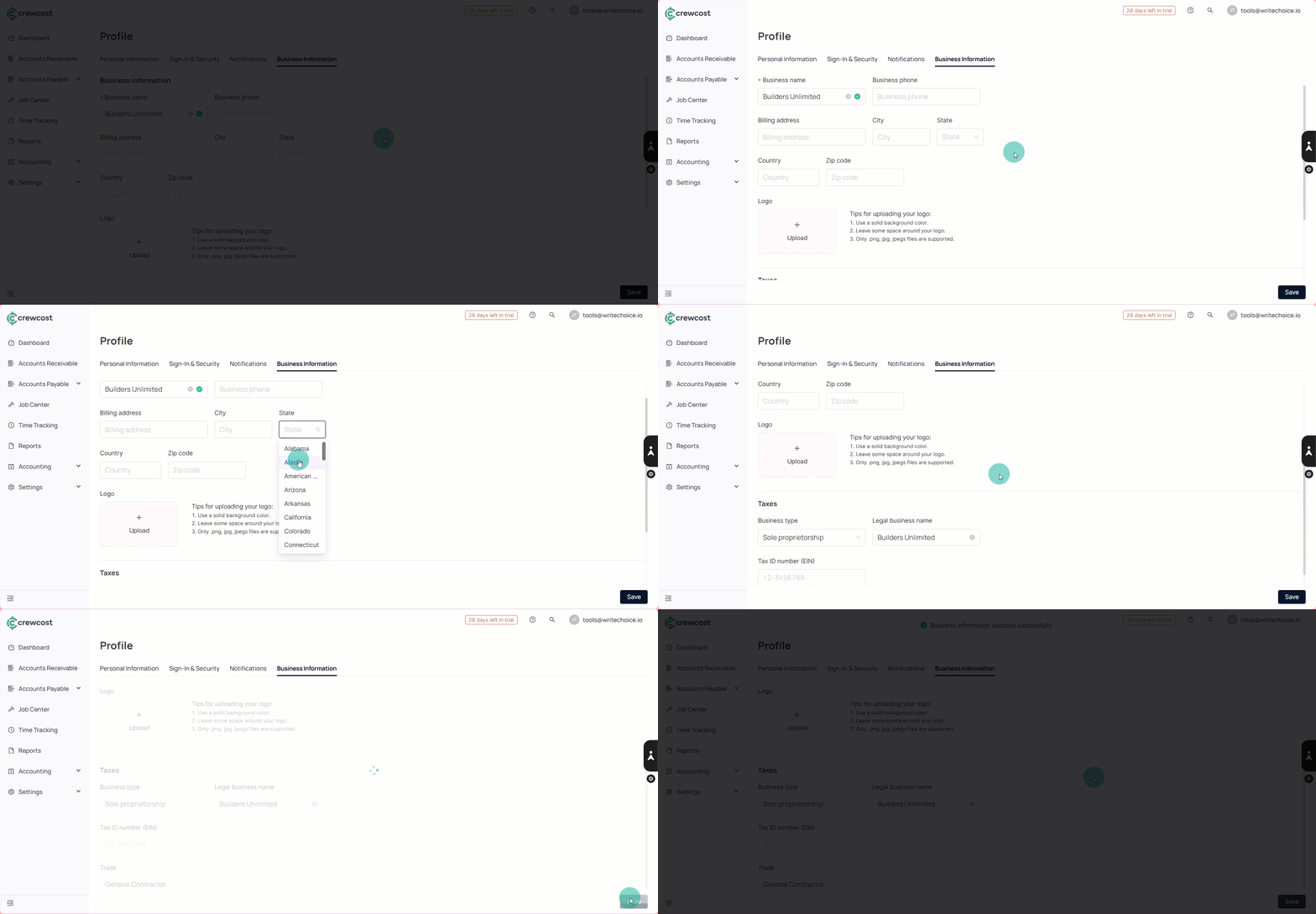
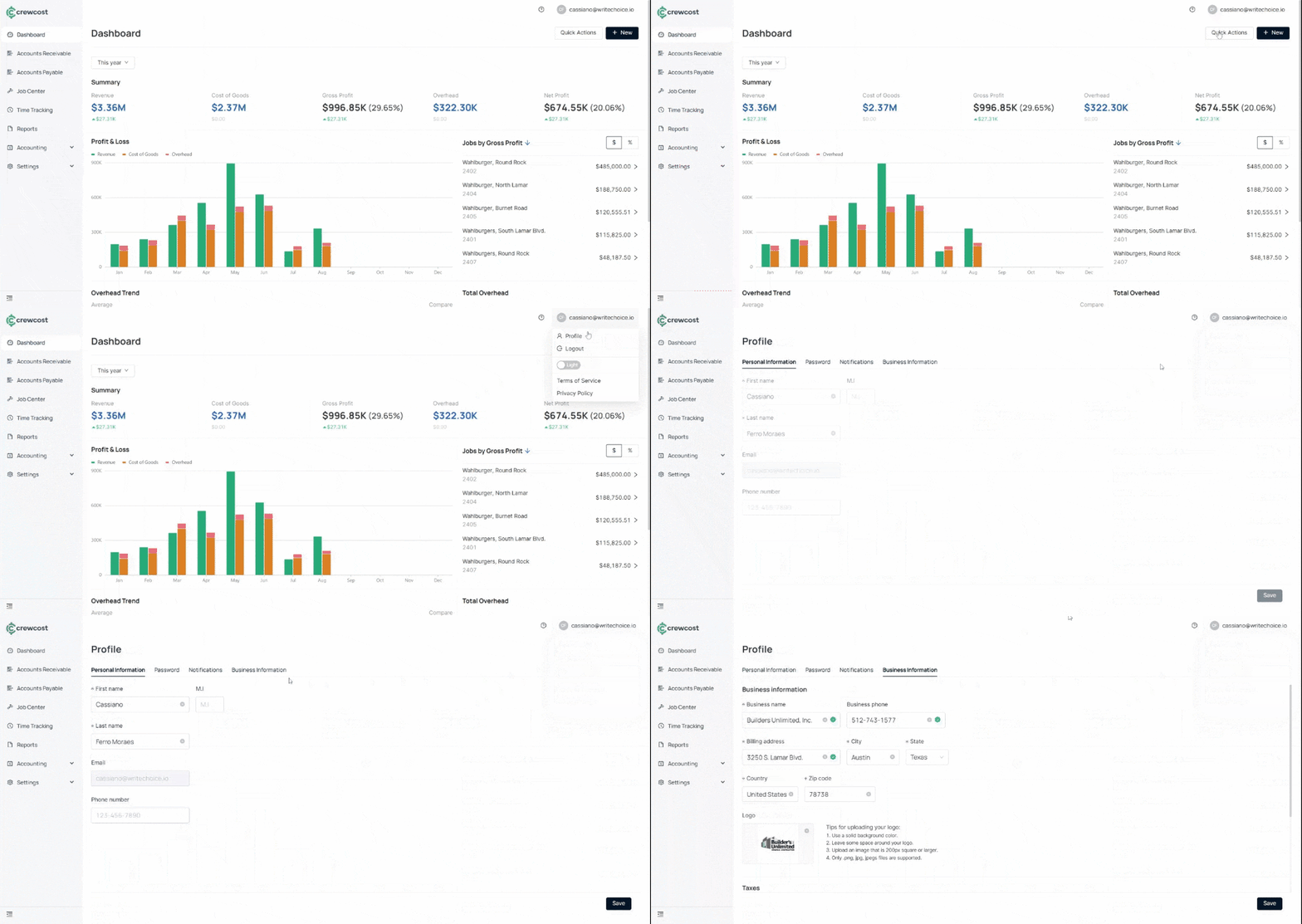
To update your business information:
1. Click your email at the top-right corner of the screen, then select **Profile**.
2. Go to the **Business Information** tab.
3\. Fill in the required information:
* **Business Name**
* **Business Phone** (optional)
* **Billing Address**
* **City**
* **State**
* **Country**
* **Zip Code**
* **Logo** (optional)
4\. Under the **Taxes** section, provide:
* **Business Type**
* **Legal Business Name**
* **Tax ID Number (EIN)**
* **Trade**
{% hint style="info" %}
In Trade, choose the category that best matches your work, such as General Contractor, Concrete, Electrical, Mechanical, or others.
{% endhint %}
5\. Click **Save** to update your information.
Once everything is saved, your information will sync throughout CrewCost, helping you keep your business records clean and consistent.
### See also
Keep exploring our platform by taking the next step:
* [Update your timezone](/documentation/general-settings/update-your-timezone.md): Learn how to set the correct operational timezone for accurate time tracking and reporting.
* [Choose an Accounting Method](/documentation/general-settings/choose-an-accounting-method.md): Instructions for selecting and toggling between Accrual and Cash basis accounting for financial reporting.
 3\. Fill in the required information:
* **Business Name**
* **Business Phone** (optional)
* **Billing Address**
* **City**
* **State**
* **Country**
* **Zip Code**
* **Logo** (optional)
4\. Under the **Taxes** section, provide:
* **Business Type**
* **Legal Business Name**
* **Tax ID Number (EIN)**
* **Trade**
{% hint style="info" %}
In Trade, choose the category that best matches your work, such as General Contractor, Concrete, Electrical, Mechanical, or others.
{% endhint %}
5\. Click **Save** to update your information.
3\. Fill in the required information:
* **Business Name**
* **Business Phone** (optional)
* **Billing Address**
* **City**
* **State**
* **Country**
* **Zip Code**
* **Logo** (optional)
4\. Under the **Taxes** section, provide:
* **Business Type**
* **Legal Business Name**
* **Tax ID Number (EIN)**
* **Trade**
{% hint style="info" %}
In Trade, choose the category that best matches your work, such as General Contractor, Concrete, Electrical, Mechanical, or others.
{% endhint %}
5\. Click **Save** to update your information.