> For the complete documentation index, see [llms.txt](https://docs.crewcost.com/llms.txt). Markdown versions of documentation pages are available by appending `.md` to page URLs; this page is available as [Markdown](https://docs.crewcost.com/documentation/general-settings/update-your-timezone.md).
# Update Your Timezone
Setting your time zone ensures that every timestamp in CrewCost, such as updates, logs, and project schedules, matches your local time. This guide walks you through choosing the right option, including recommendations for international users.
To update your time zone:
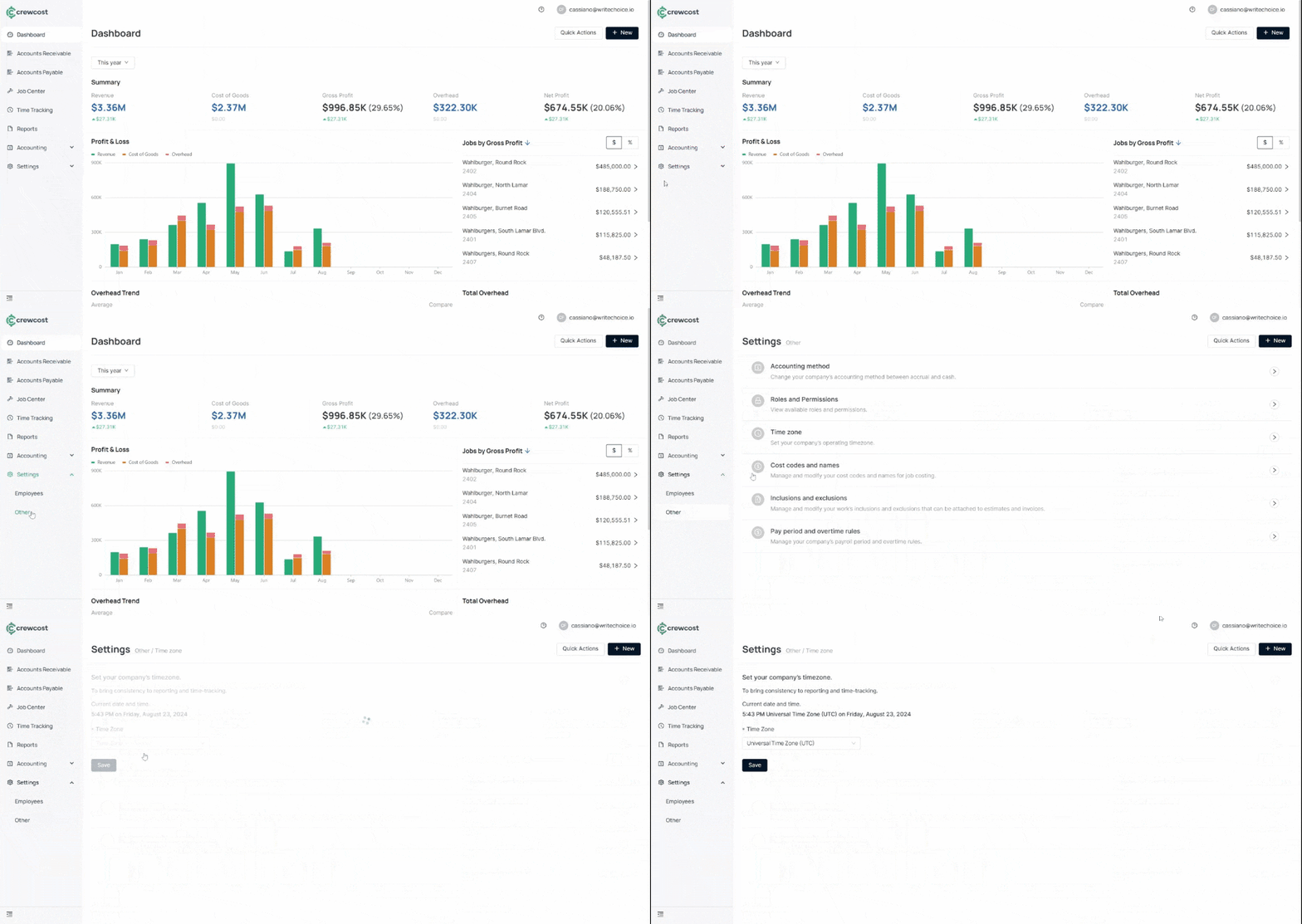
1. In the left menu, select **Settings > Other**.
2. Choose **Time Zone**.
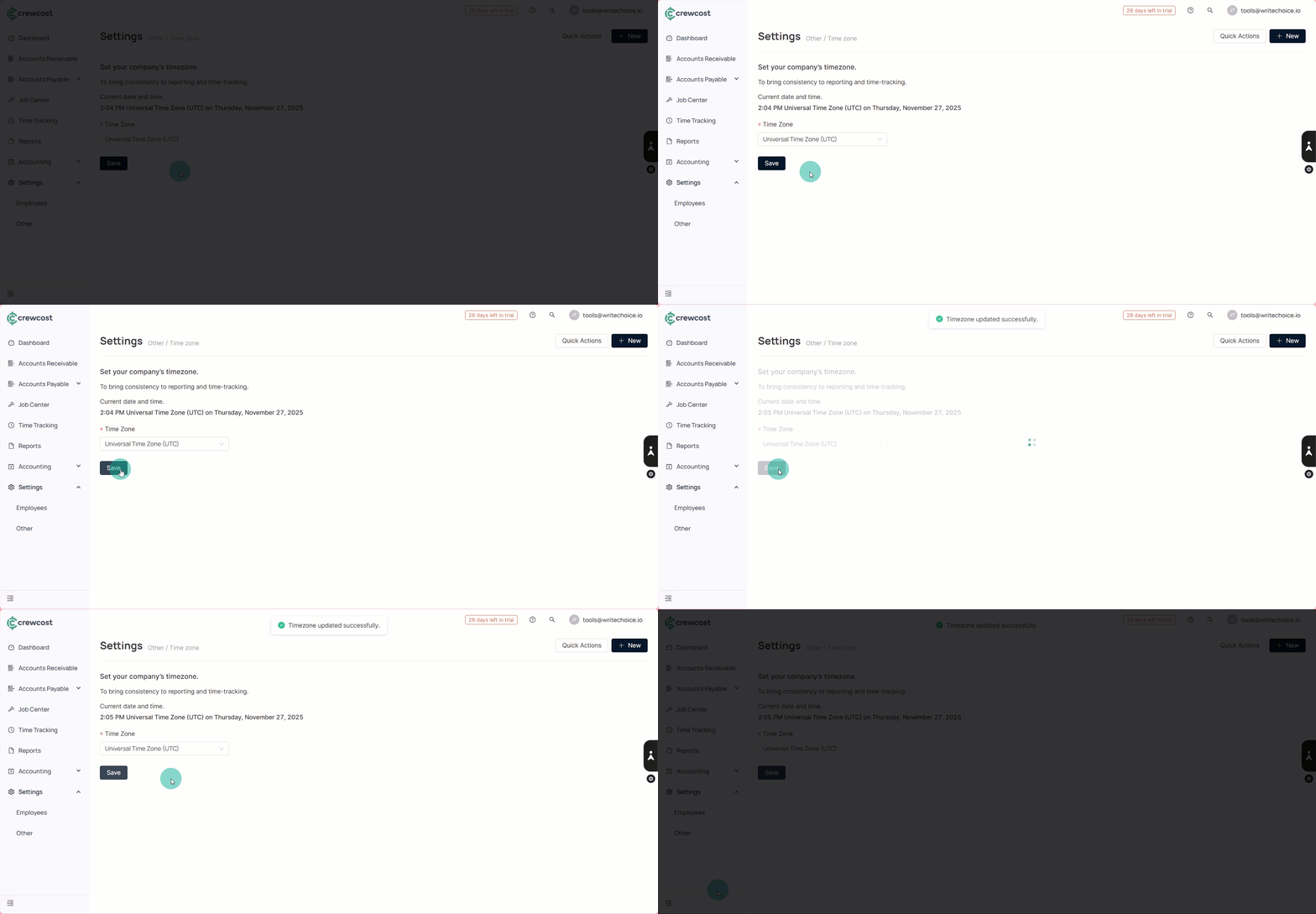
3\. From the available options, select your preferred time zone:
* **Universal Time Zone (UTC)**
* **Alaskan Standard Time (AKST)**
* **Atlantic Standard Time (AST)**
* **Central Standard Time (CST)**
* **Eastern Standard Time (EST)**
* **Hawaii-Aleutian Standard Time (HST)**
* **Mountain Standard Time (MST)**
* **Pacific Standard Time (PST)**
{% hint style="info" %}
When selecting a time zone for non-U.S. citizens, it’s generally best to choose Universal Time Zone (UTC). UTC is a global time standard and does not change with daylight saving time, making it suitable for international users.
{% endhint %}
4. Click **Save** to complete the process.
With your time zone set, all your project timelines and activity logs will display consistently, no matter where you or your team are located.
#### See also
Keep exploring our platform by taking the next step:
* [Manage inclusions and exclusions](https://help.crewcost.com/manage-inclusions-and-exclusions): Learn how to define a new standard exclusion or inclusion.
* [Choose an Accounting Method](/documentation/general-settings/choose-an-accounting-method.md): Instructions for selecting and toggling between Accrual and Cash basis accounting for financial reporting.