> For the complete documentation index, see [llms.txt](https://docs.crewcost.com/llms.txt). Markdown versions of documentation pages are available by appending `.md` to page URLs; this page is available as [Markdown](https://docs.crewcost.com/documentation/accounting-configuration/close-books.md).
# Close Books
Closing the books helps keep your financial data accurate by locking past periods once all expenses, revenue, and reconciliations are complete. After closing, normal users cannot enter or edit transactions before the lock date. If an accountant overrides the warning and makes a change, the system records it and shows you exactly what shifted, making it easier to spot and correct any post-close adjustments.
To close the books:
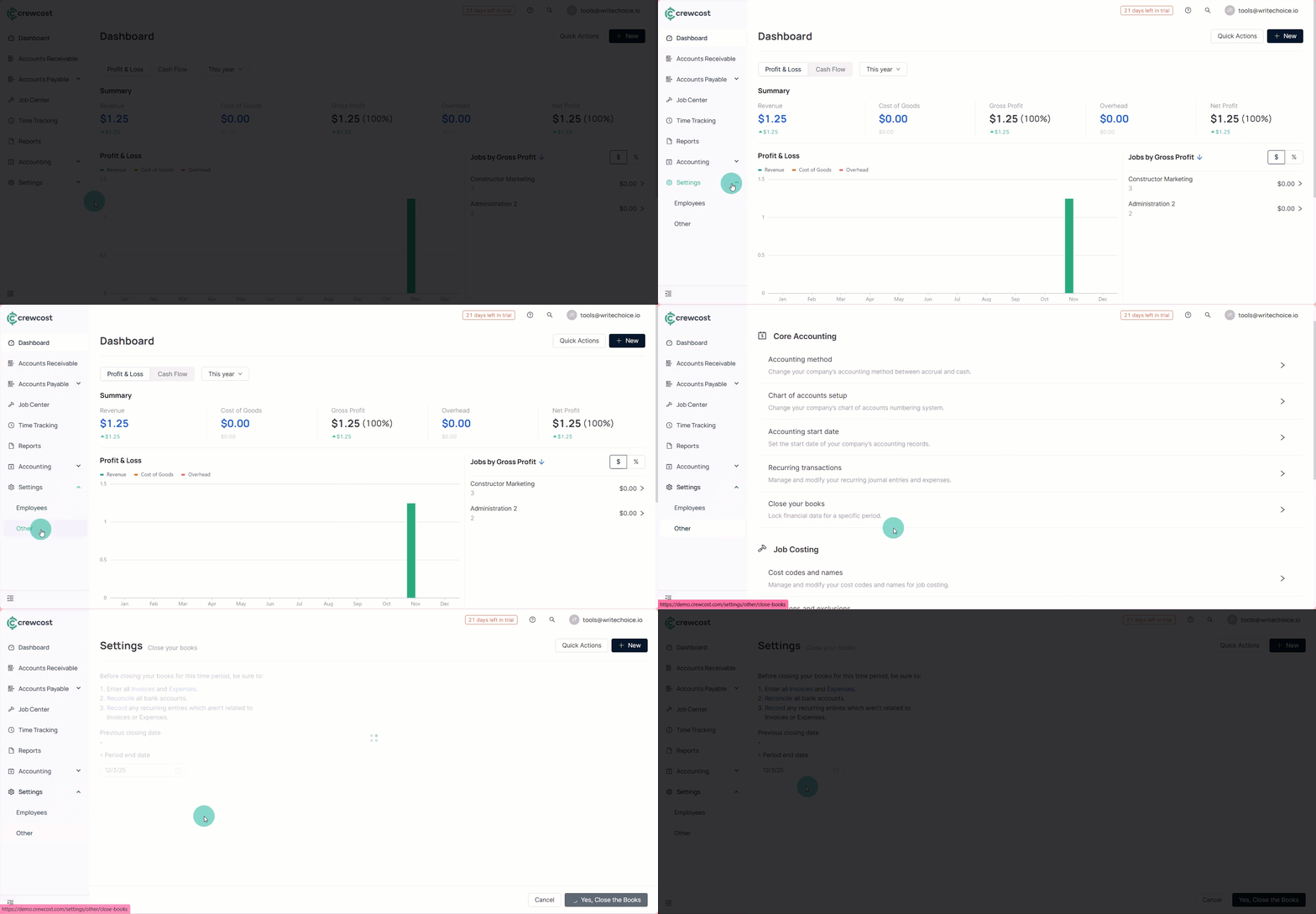
1. Go to **Settings > Other.**
2. Select the **Closing your books** option.
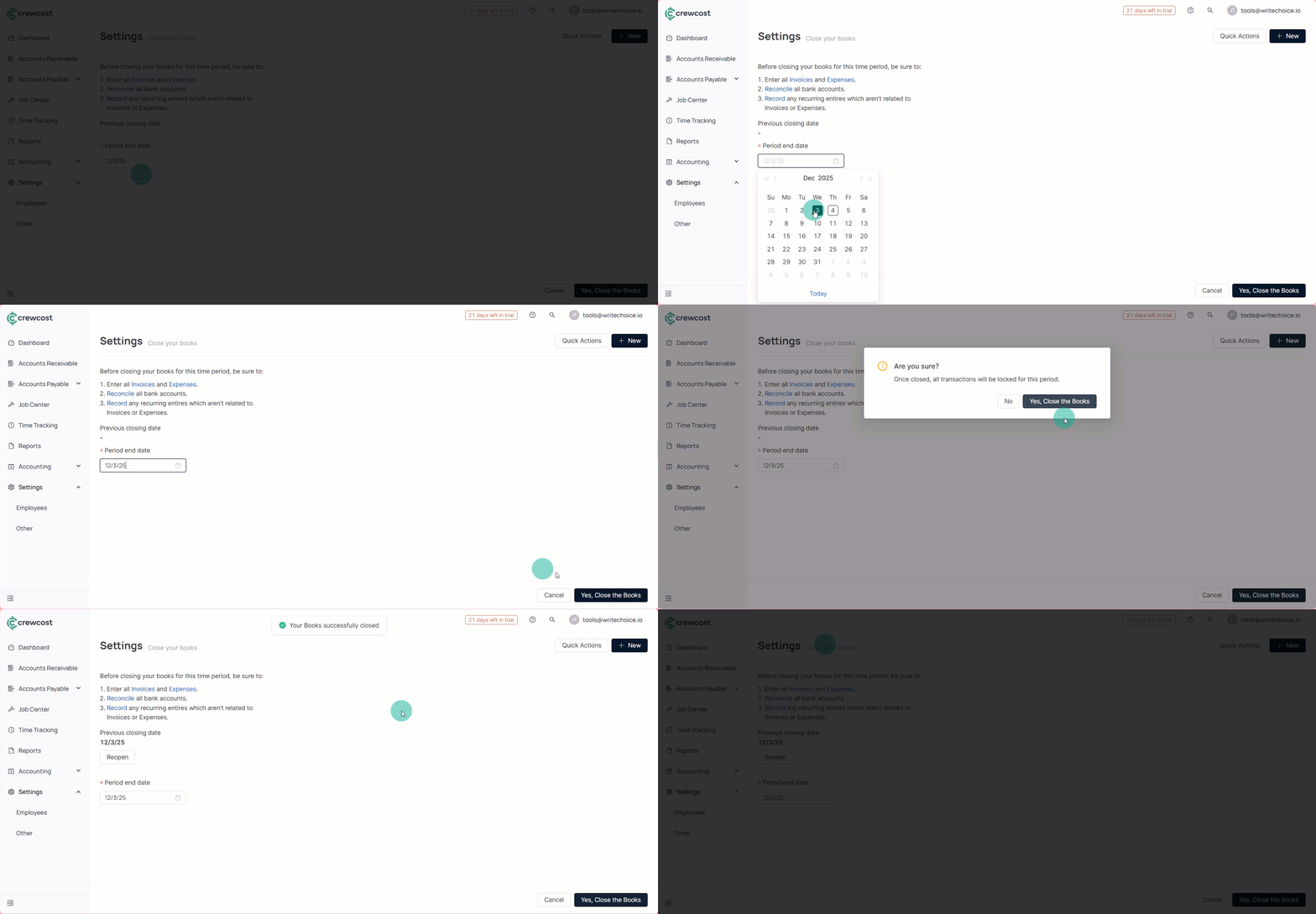
3. Enter the **Period end date.** Usually, the last day of the prior month is once all activity has been finalized.
{% hint style="info" %}
This date should only be set after all expenses, revenue, and reconciliations for that period are complete.
{% endhint %}
4. Click **Close the Books** to lock all transactions on or before that date. After allowing this option:
* Normal users will not be allowed to add or edit transactions before the lock date.
* Accountants or advanced users will receive a warning explaining that changes may affect reconciliations or financial statements. They can still proceed, but the system will record those actions.
### **Track Post-Close Adjustments**
After the books are closed, the system automatically tracks any changes made to the locked period:
* If someone adds, edits, or deletes a transaction dated before the closing date, the system logs the adjustment.
* This log helps you understand why something no longer balances. For example, a reconciliation suddenly being off by $100.
* The system will show you the exact change that caused the variance, making troubleshooting simple.
### **Reopen Books**
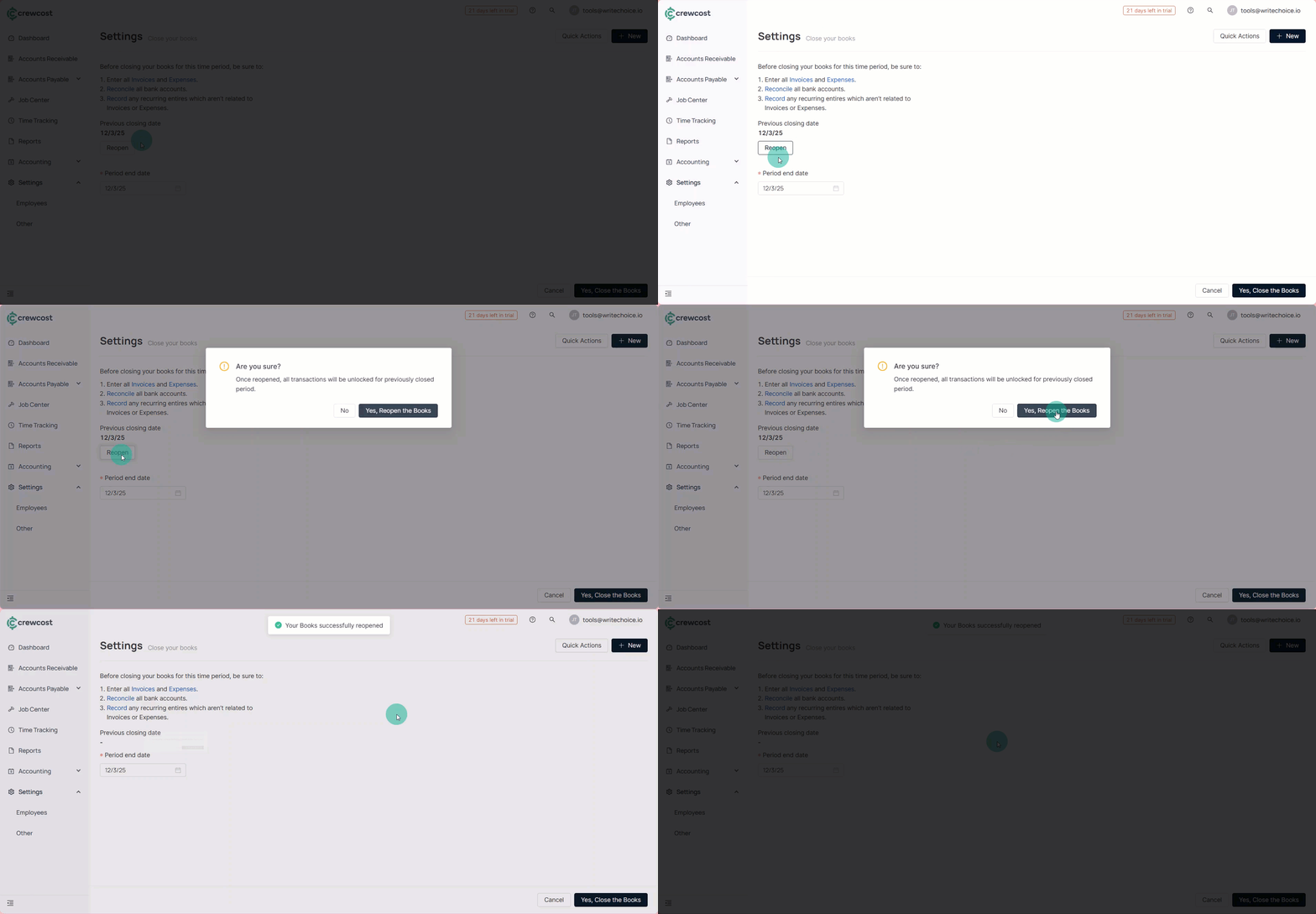
**To reopen books:**
1. Go back to the **Closing the Books** page.
2. An accountant or authorized user can select **Reopen** to clear the lock date.
3. Once reopened, users can again modify past-period transactions.
4. You may close the books again after adjustments are complete.
{% hint style="info" %}
The system maintains a record of each reconciliation, but the **close date itself is a single value**, not a list of multiple historical closing snapshots.
{% endhint %}
Closing the books keeps your financial history accurate and protected. By setting a lock date and reviewing any post-close adjustments, you ensure your reports stay clean and reliable month after month.
### See also
Keep exploring our platform by taking the next step:
* [Set the Accounting Start Date](/documentation/accounting-configuration/set-the-accounting-start-date.md): Learn how to set the date for data migration to ensure historical reports are accurate.
* [Connect Accounts via Plaid](/documentation/accounting-configuration/connect-bank-accounts-via-plaid.md): Step-by-step instructions for connecting financial institutions and managing live transaction feeds.