> For the complete documentation index, see [llms.txt](https://docs.crewcost.com/llms.txt). Markdown versions of documentation pages are available by appending `.md` to page URLs; this page is available as [Markdown](https://docs.crewcost.com/documentation/accounting-configuration/handle-reconciliations.md).
# Handle Reconciliations
Reconciling your accounts helps ensure that the transactions in your system match your bank or credit card statements. This process allows you to spot errors, missing entries, duplicates, or any unexpected activity. Regularly reconciling accounts improves the accuracy of your financial reports and helps maintain clean books.
To handle a reconciliation:
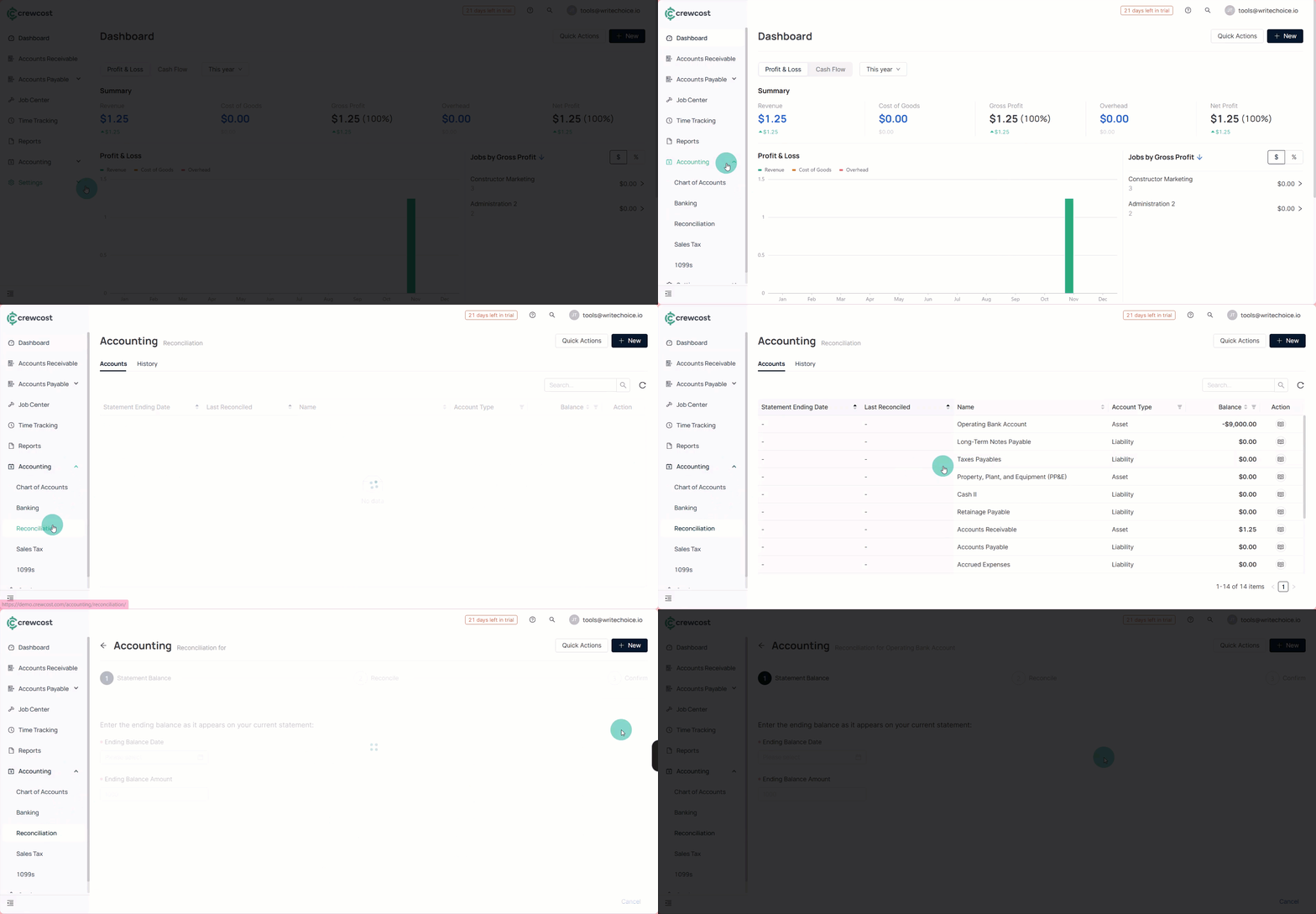
1. Go to the **Accounting** section in the left menu and select the **Reconciliation** sub-tab.
2. Click the **book icon** under **Actions** for the account you want to reconcile.
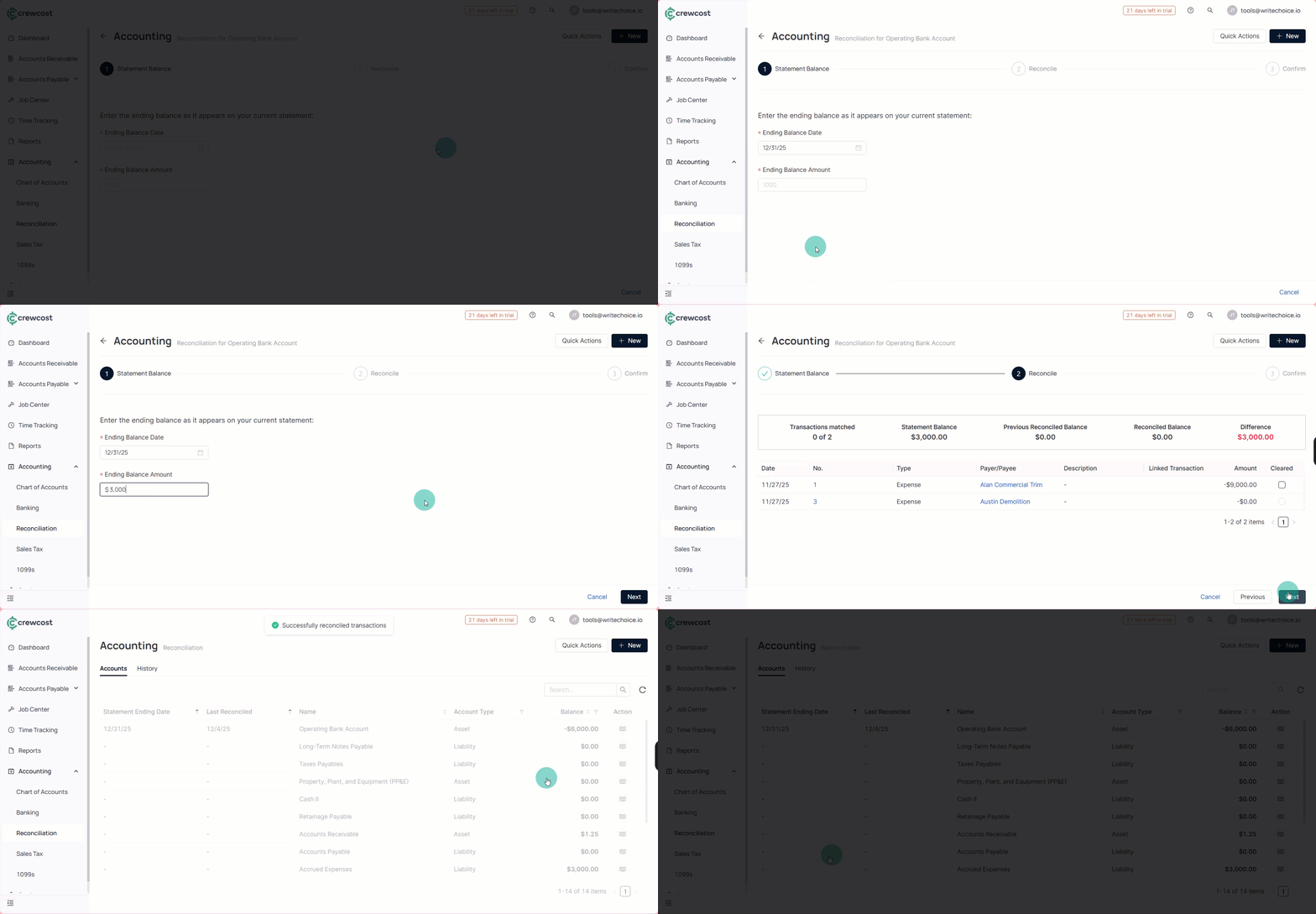
3. In the **Statement Balance** section, enter the required details:
* **Ending Balance Date:** Select the closing date shown on your bank or card statement. This ensures the system compares the correct period.
* **Ending Balance Amount:** Enter the final balance exactly as it appears on the external statement. This number is the reference point for the entire reconciliation.
4. Click **Next**.
5. In the **Reconcile** section:
* Optionally turn on the **Cleared** toggle for each transaction that appears on your bank or card statement.
* Marking a transaction as cleared indicates that it has been confirmed with the bank.
* Matching all transactions helps you verify that nothing is missing or duplicated.
* After reviewing your list, click **Next**.
6. In the **Confirm** section, add a **description** to label this reconciliation (for example, “January 2025 Bank Reconciliation”).
* You will also see a summary of essential totals:
* **Transactions Matched:** Quantity of items that were successfully matched with the statement.
* **Statement Balance:** The ending balance you entered earlier.
* **Previous Reconciled Balance:** The ending balance from your last completed reconciliation.
* **Reconciled Balance:** The balance from your cleared transactions.
* **Difference:** The amount that still needs to be resolved. Ideally, this number should be **0** before you finish.
7. Click **Finish** to complete the reconciliation.
### **View Statements**
To review your completed reconciliations:
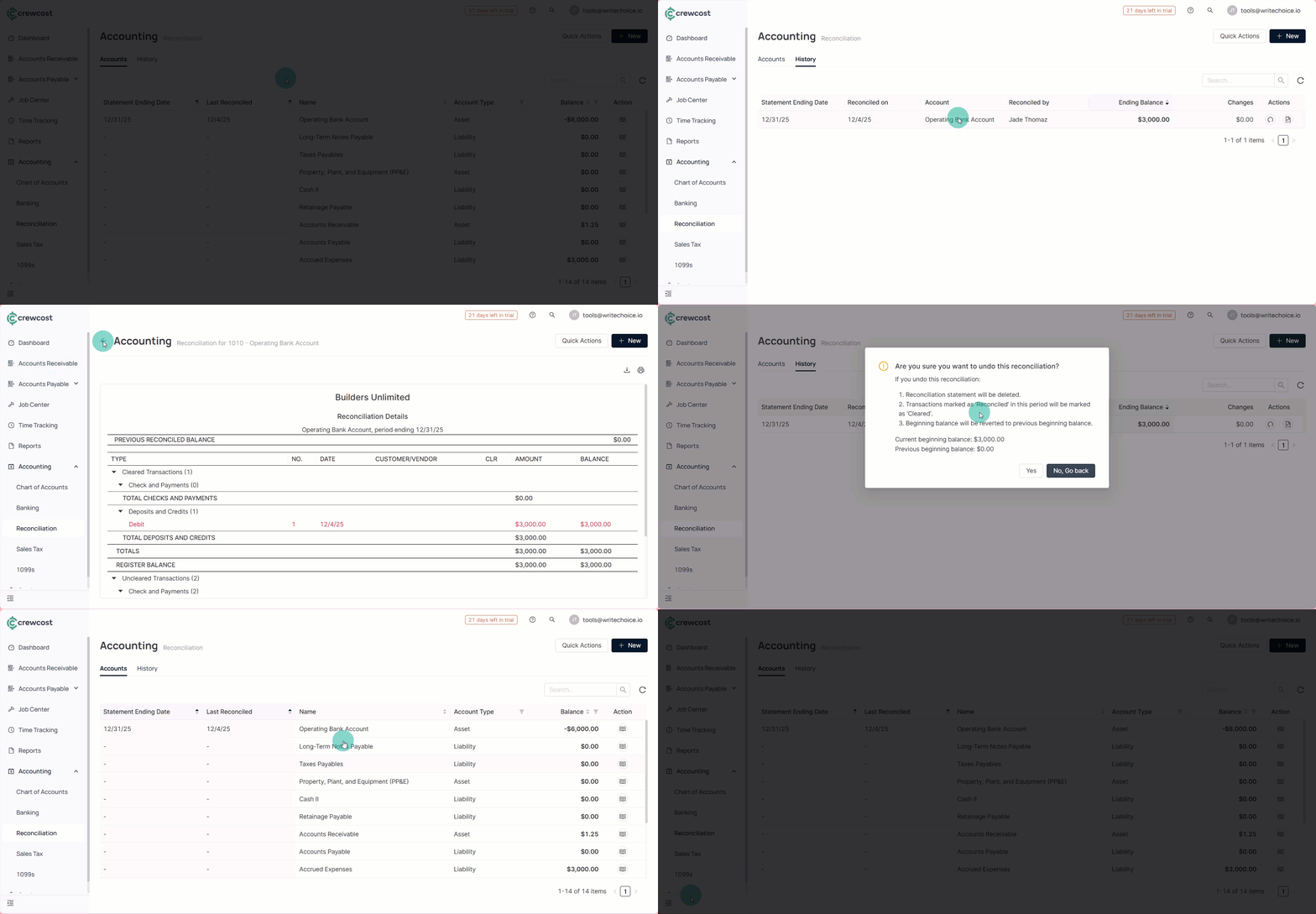
1. Go to the **History** sub-tab.
2. Click on the name of any statement to open and view the detailed information. You will see the balances, dates, and matched transactions included in that reconciliation.
{% hint style="info" %}
This is useful for audits, corrections, or historical reference.
{% endhint %}
Regular reconciliations keep your financial data clean, accurate, and trustworthy. By following these steps, you ensure your books reflect reality and stay ready for reporting at any time.
### See also
Keep exploring our platform by taking the next step:
* [Closing the Books](/documentation/accounting-configuration/close-books.md): Learn how to set the lock date to prevent data changes, and tracking post-close adjustments.
* [Set the Accounting Start Date](/documentation/accounting-configuration/set-the-accounting-start-date.md): Learn how to set the date for data migration to ensure historical reports are accurate.