> For the complete documentation index, see [llms.txt](https://docs.crewcost.com/llms.txt). Markdown versions of documentation pages are available by appending `.md` to page URLs; this page is available as [Markdown](https://docs.crewcost.com/documentation/work-breakdown-structure/add-a-new-inclusion-exclusion.md).
# Add a New Inclusion/Exclusion
Inclusions and exclusions help make your estimates, contracts, and project proposals clear and accurate by stating exactly what is covered before a job begins. They prevent misunderstandings, protect your team from unexpected work, and ensure clients understand the full scope of the project. By setting these items up in the system, you can standardize your process, save time on every estimate, and automatically apply the right information when needed.
To create new inclusions and exclusions:
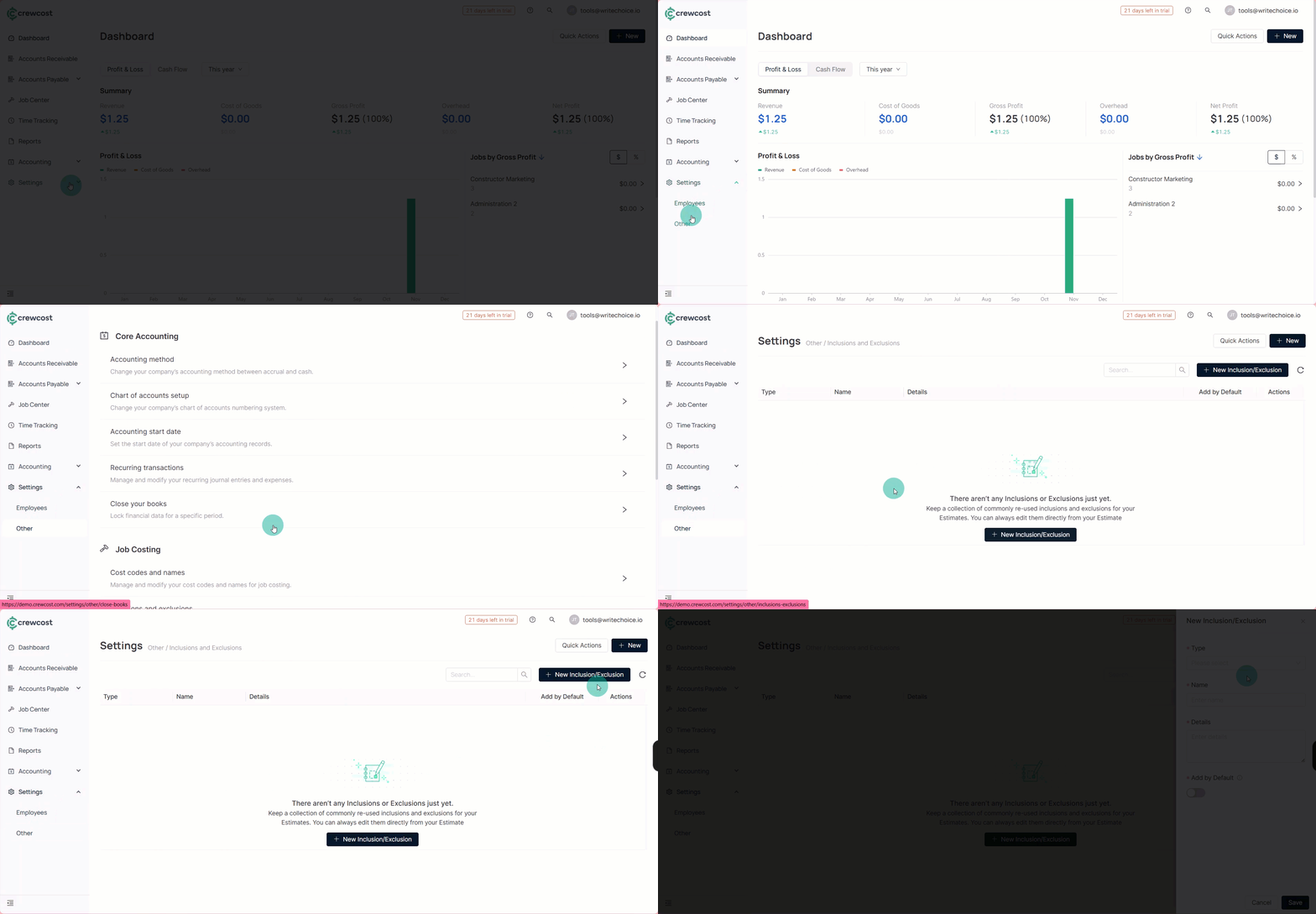
1. Navigate to **Settings > Other > Inclusions and Exclusions** from the left menu.
2\. Click on +**New Inclusion/Exclusion.**\
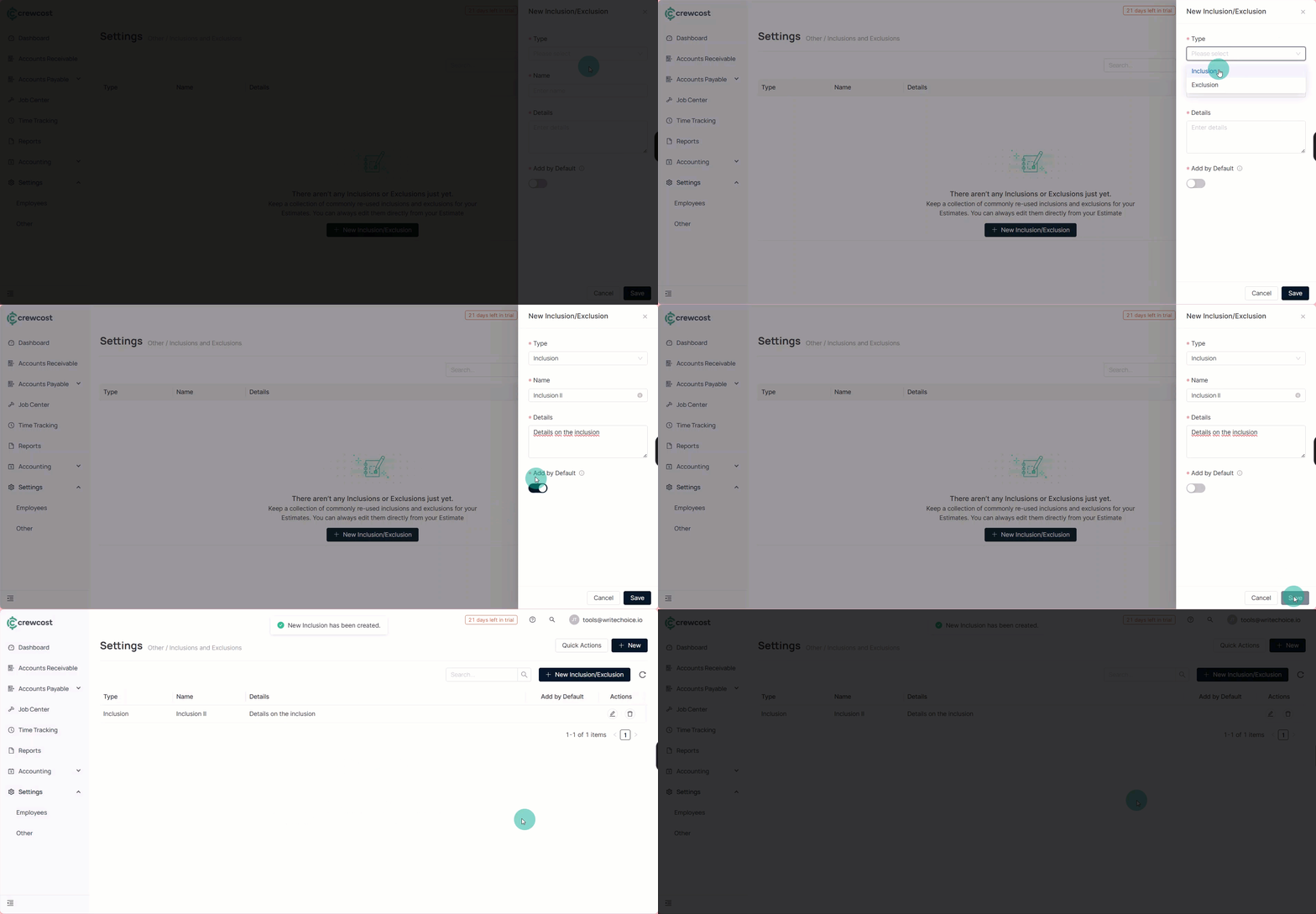
3\. Complete the following fields:
* **Type**: Select either **Inclusion** or **Exclusion**.
* **Name:** Enter the name of the inclusion or exclusion.
* **Details:** Provide additional details if needed.
* **Add by Default:** Toggle this option if you want the inclusion or exclusion to be automatically added to every estimate.
{% hint style="info" %}
This inclusion or exclusion will be added to every estimate if enabled.
{% endhint %}
4. Click **Save** to complete the process.
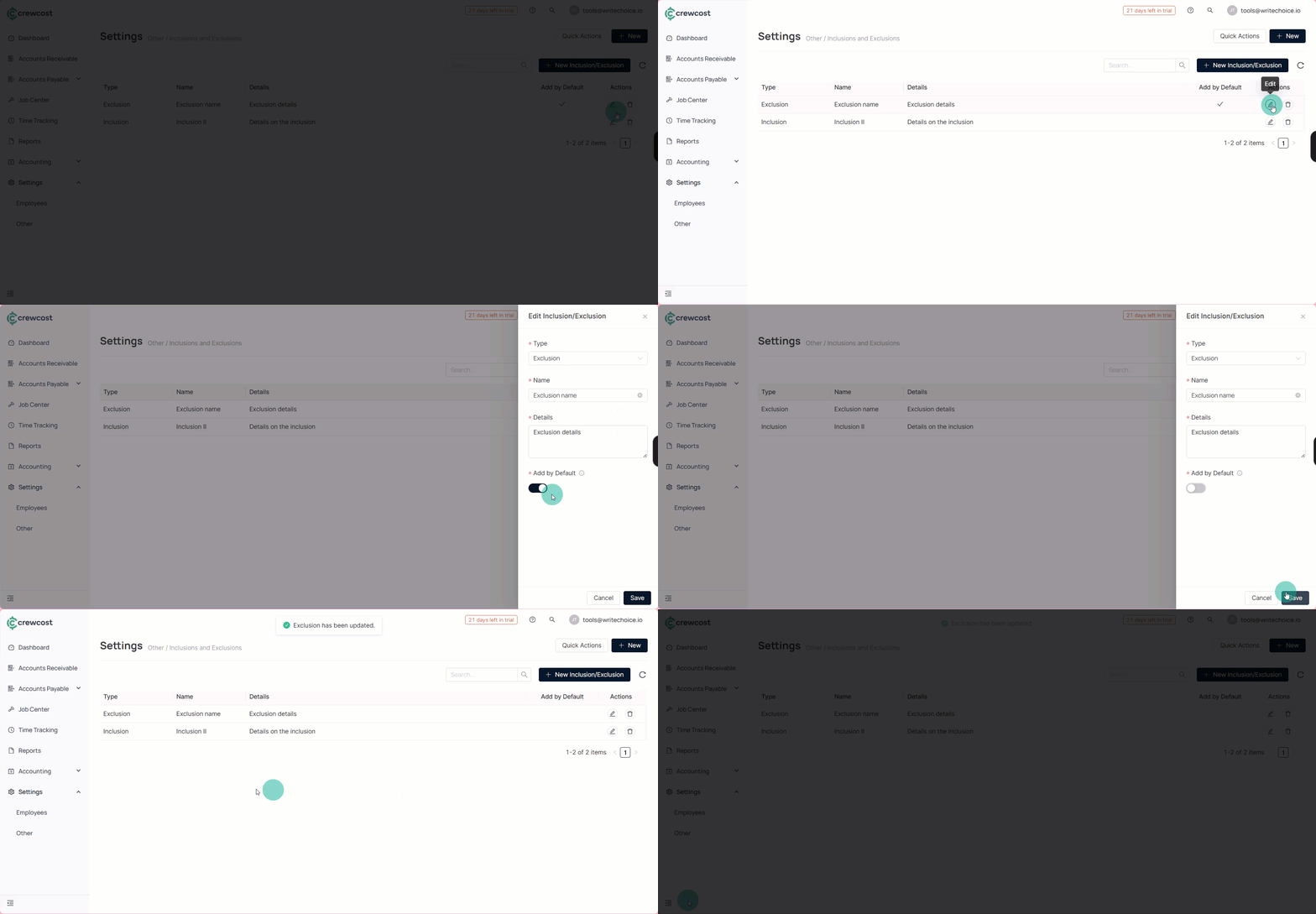
5. (Optional) Select the edit icon to edit any information on an existing inclusion/exclusion. Then, select **Save**.
Setting up your inclusions and exclusions this way keeps your estimates consistent, transparent, and easy to manage across every project.
### See also
Keep exploring our platform by taking the next step:
* [Add a New Cost Code:](/documentation/work-breakdown-structure/add-a-new-cost-code.md) Understand how to create and manage cost codes.
* [Create Customers](/documentation/daily-workflows/accounts-receivable/create-customers.md): Learn how to add and organize customer information.