> For the complete documentation index, see [llms.txt](https://docs.crewcost.com/llms.txt). Markdown versions of documentation pages are available by appending `.md` to page URLs; this page is available as [Markdown](https://docs.crewcost.com/documentation/accounting-configuration/customize-the-chart-of-accounts-structure.md).
# Customize the Chart of Accounts Structure
The Chart of Accounts Setup tool allows you to structure your financial records by defining account types and detail levels. The process involves three main phases:
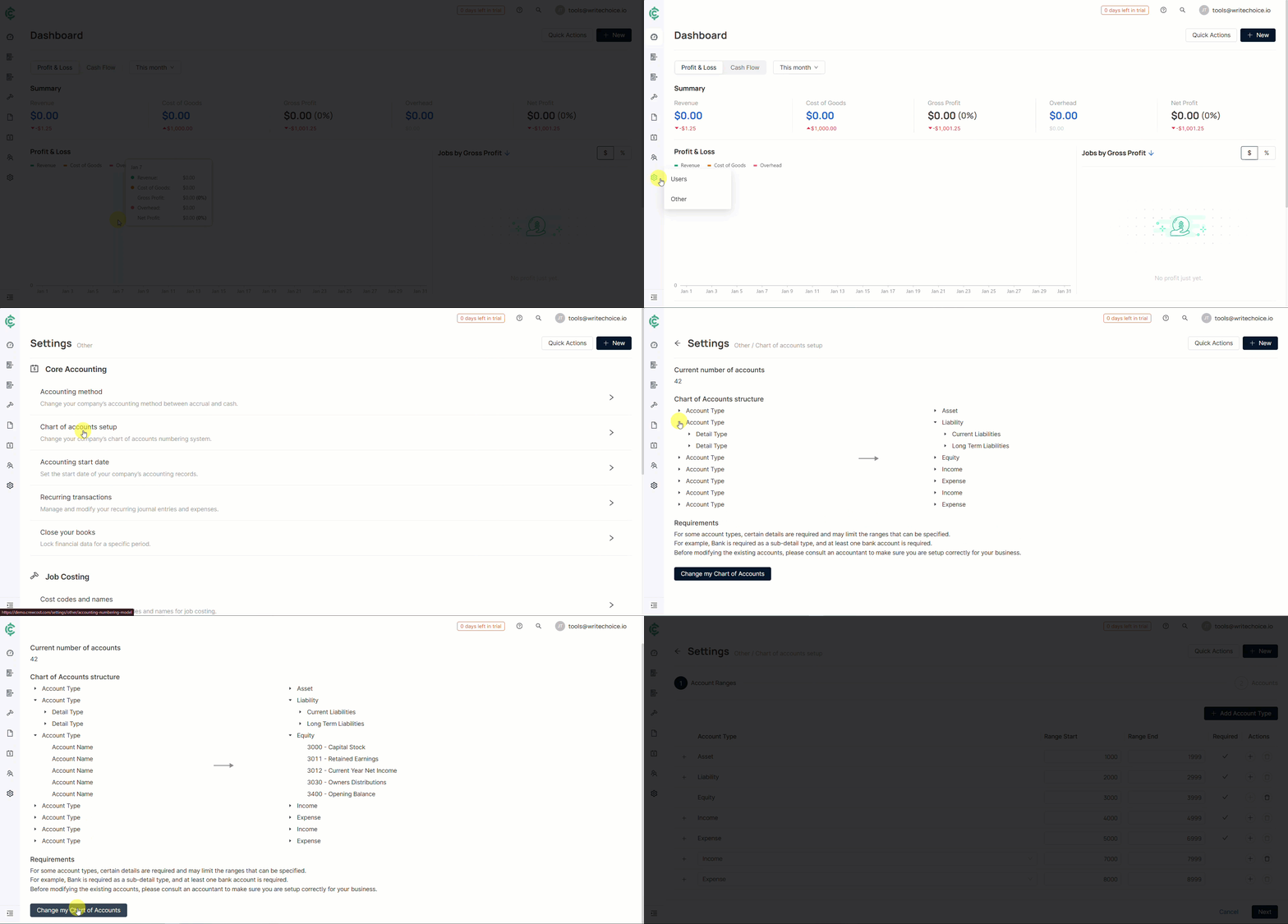
* Assessment: Locate the tool under Settings > Other to review your current account structure and expansion needs.
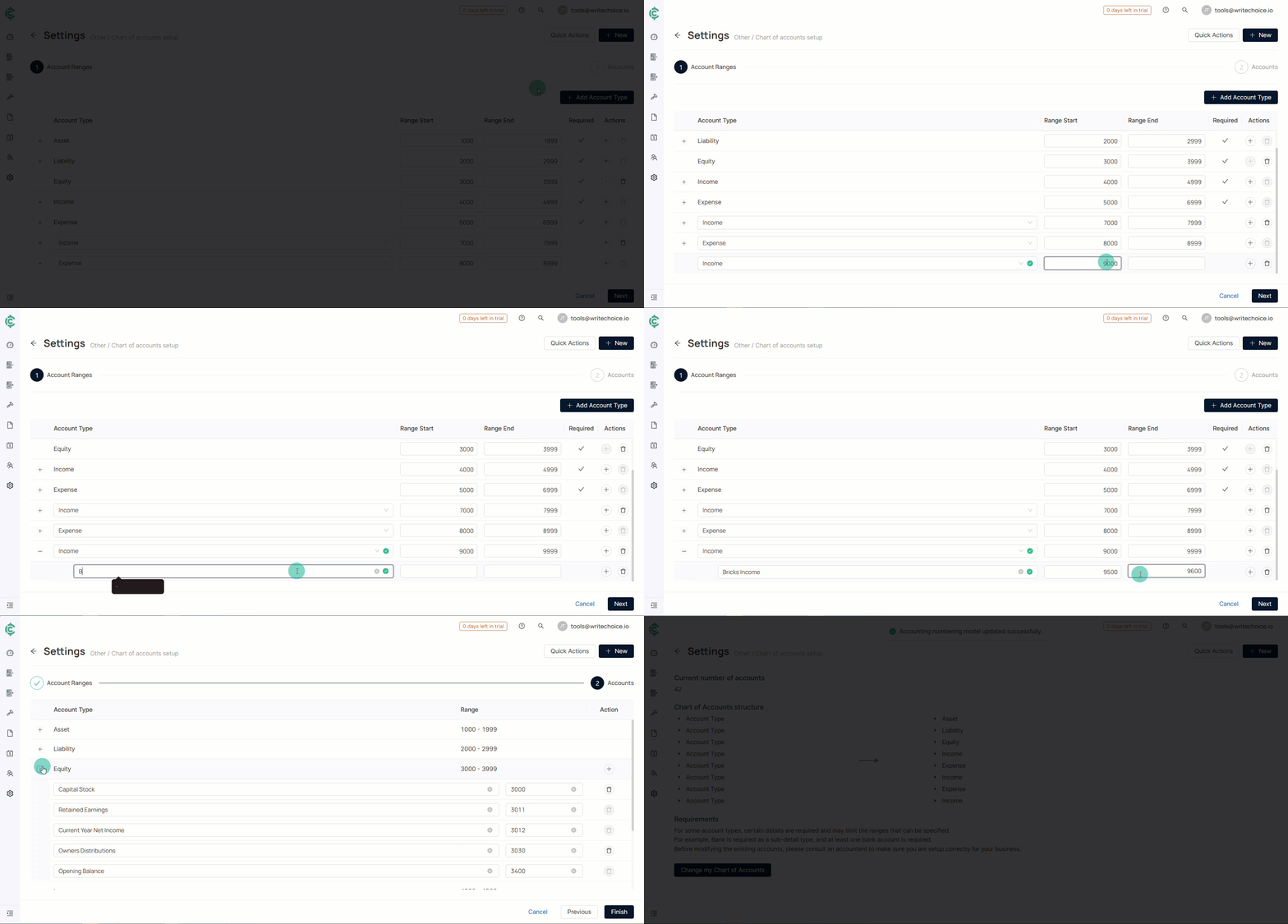
* Expansion: Use the Customize feature to add new Account Types and define their specific numerical ranges (e.g., assigning a block of numbers for Assets or Expenses).
* Refinement: Use the Actions menu to add Detail Types for more granular tracking.
Once the structure is updated and reviewed, finalize the process by clicking Finish to ensure your ledger is organized according to your business needs.
To customize your Chart of Accounts:
1. Go to **Settings > Other**.
2. Under **Core Accounting**, select **Chart of Accounts** Setup.
3. Check the number of accounts you have and its current structure. You can click the arrows next to Account Type to view the accounts in the chart.
4. Click **Change my Chart of Accounts** to customize the structure.
1. Click **+ Add Account Type** to add an account type. Then, select an account type and enter a **Range Start** and a **Range End**.
2. Click the **+** button under **Actions** to add a **Detail Type** in the account you want.
3. Select **Next** when you finish.
4. Review your Chart of Accounts. Then, select **Finish** to finalize the process.
### See Also
Keep exploring our platform by taking the next step:
* [Manage the Chart of Accounts:](/documentation/accounting-configuration/manage-the-chart-of-accounts.md) Set up your Chart of Accounts so you can keep your company’s financial information organized and easy to understand.
* [Set the Accounting Start Date:](/documentation/accounting-configuration/set-the-accounting-start-date.md) The Accounting start date defines the point in time when your financial data begins inside CrewCost.