> For the complete documentation index, see [llms.txt](https://docs.crewcost.com/llms.txt). Markdown versions of documentation pages are available by appending `.md` to page URLs; this page is available as [Markdown](https://docs.crewcost.com/documentation/accounting-configuration/manage-and-match-bank-transactions.md).
# Manage and Match Bank Transactions
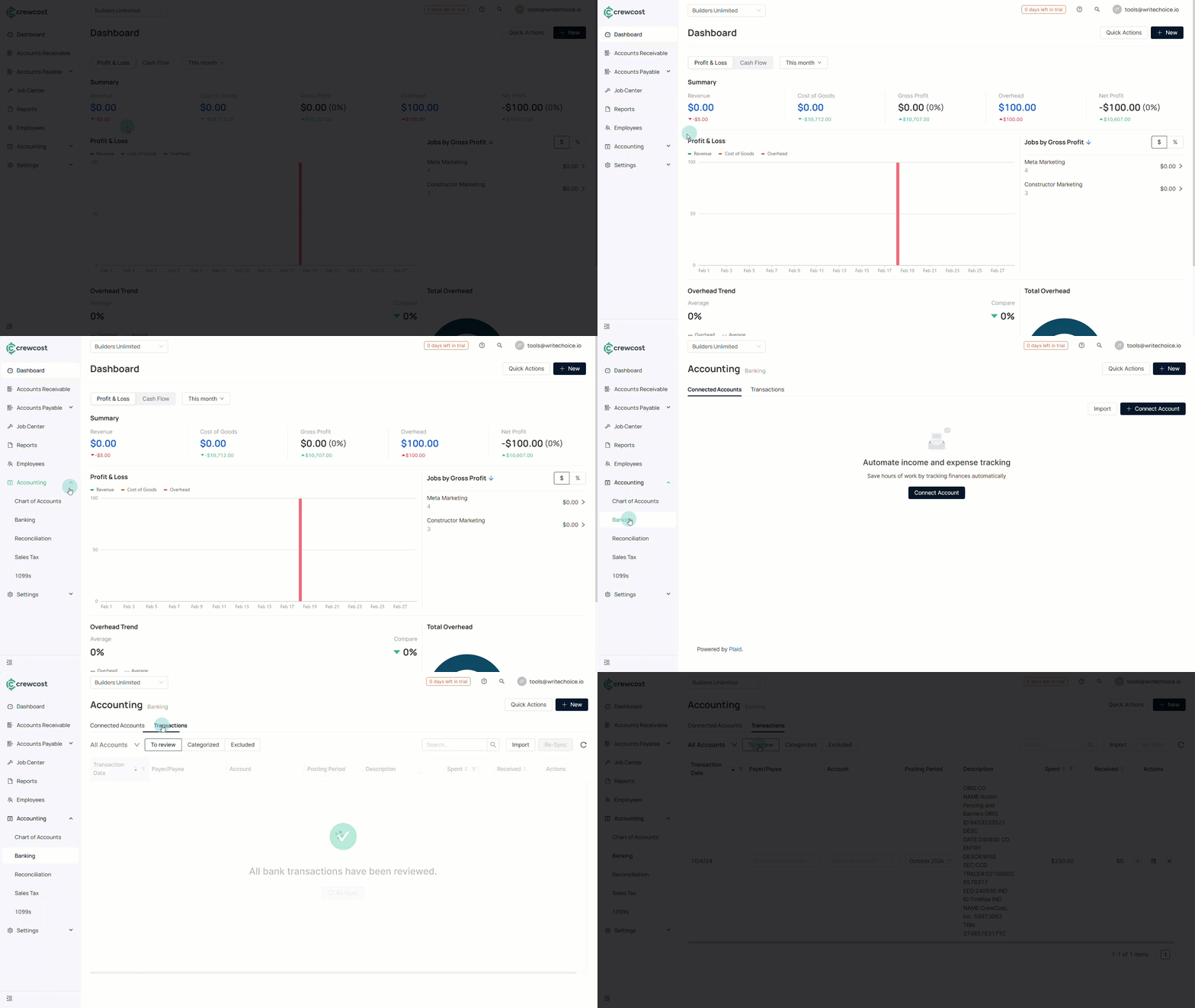
After your bank account is connected, transactions automatically appear in the Banking area. From there, you can review, add, match, transfer, or exclude them as needed.
Regularly reviewing transactions helps keep your records accurate and makes reconciliation easier.
### Review Imported Transactions
To review imported transactions:
1. Go to **Accounting**.
2. Select **Banking**.
3. Select the **Transactions** tab.
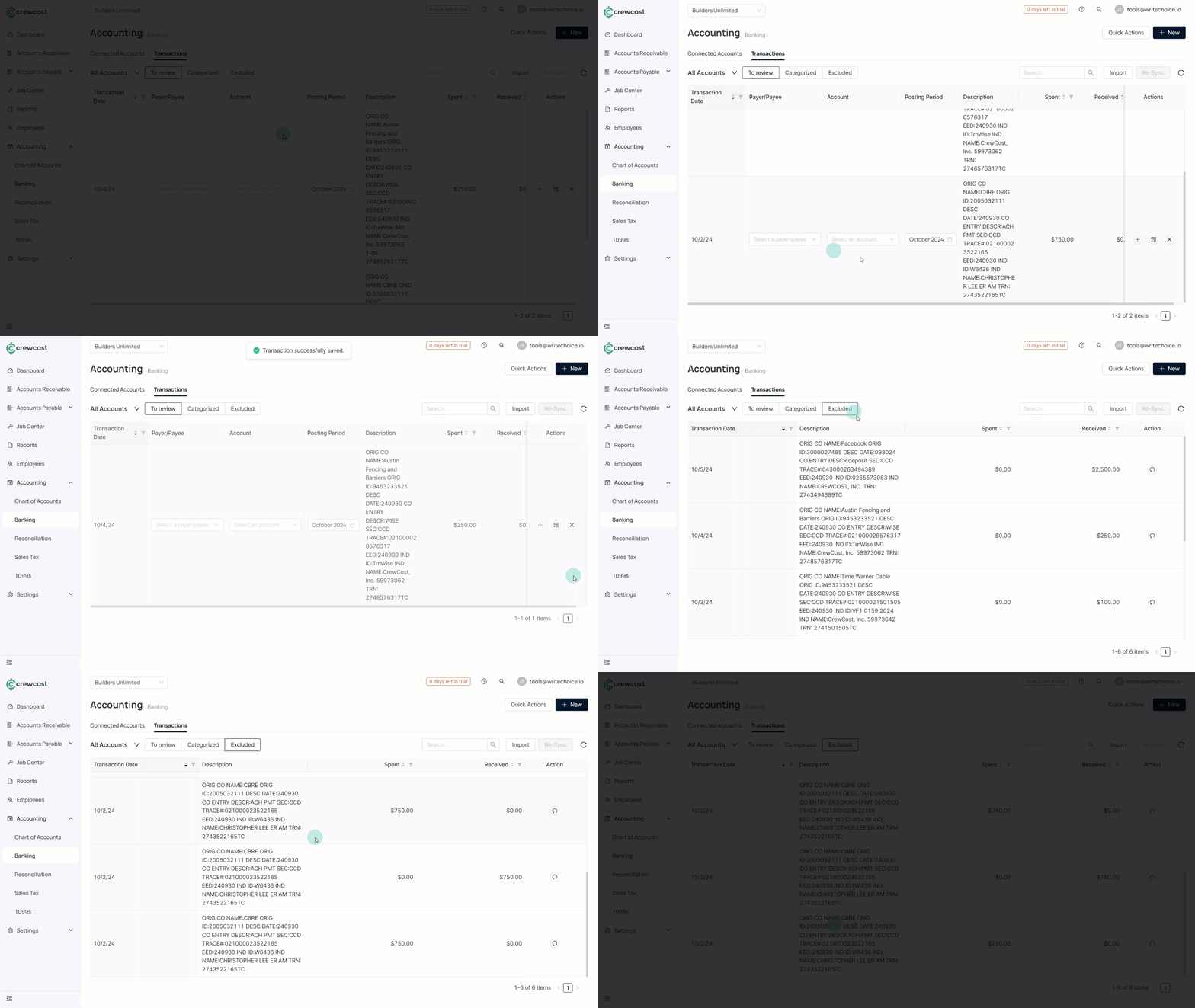
The To review section opens by default and displays imported bank transactions that require action.
Each transaction displays:
* Transaction date
* Payer/Payee
* Account
* Posting period
* Description
* Spent or Received amount
You can search, filter, or sort transactions as needed.
### Add a New Transaction from a Bank Record
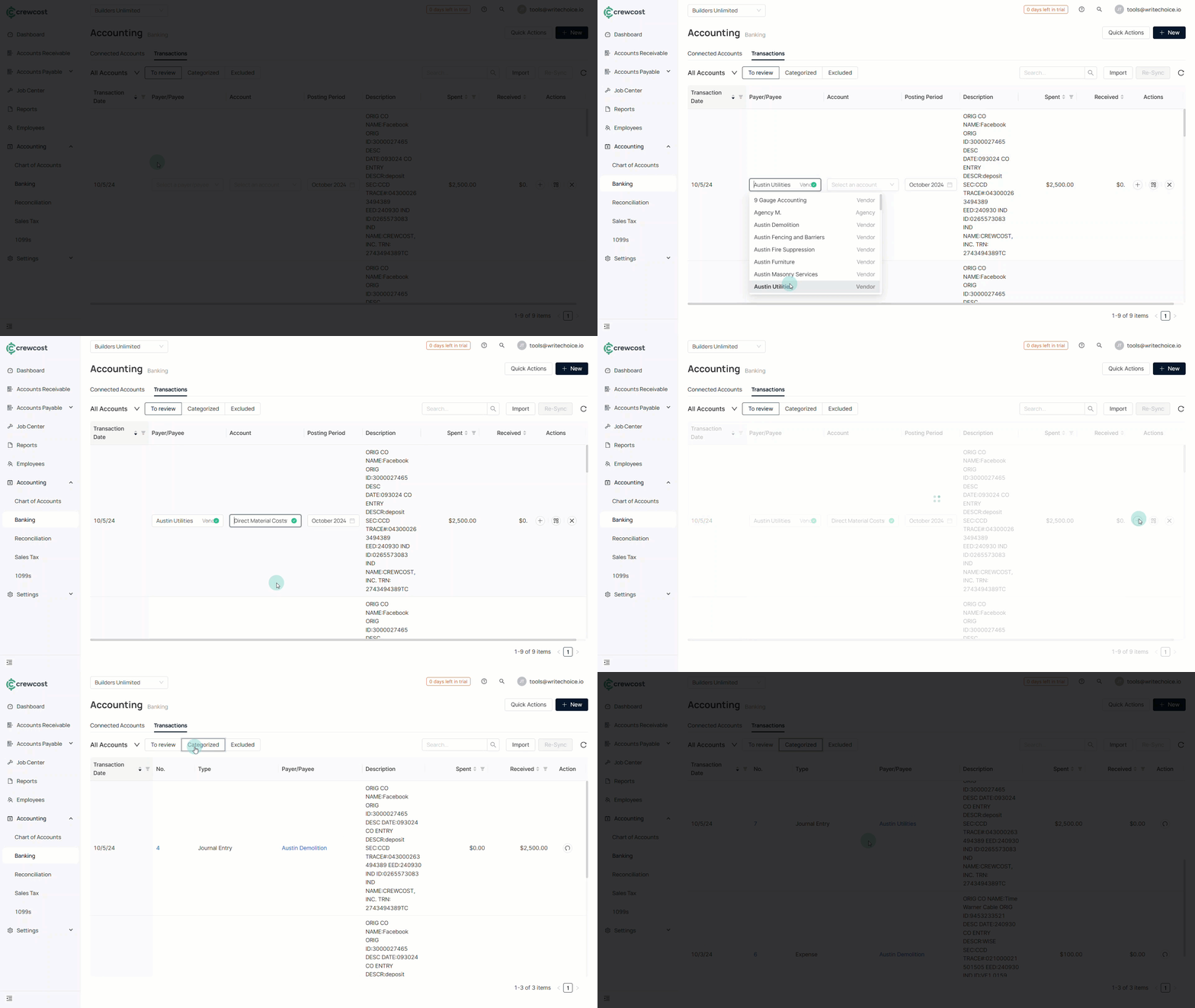
If an imported transaction does not match an existing record, you can create a new one directly from the **To review** tab.
1. Locate the transaction.
2. Select a **Payer/Payee**.
3. Select an **Account**.
4. Select the **+ (Add)** icon under **Actions**.
The transaction moves to the **Categorized** tab.
### Match a Transaction to an Existing Record
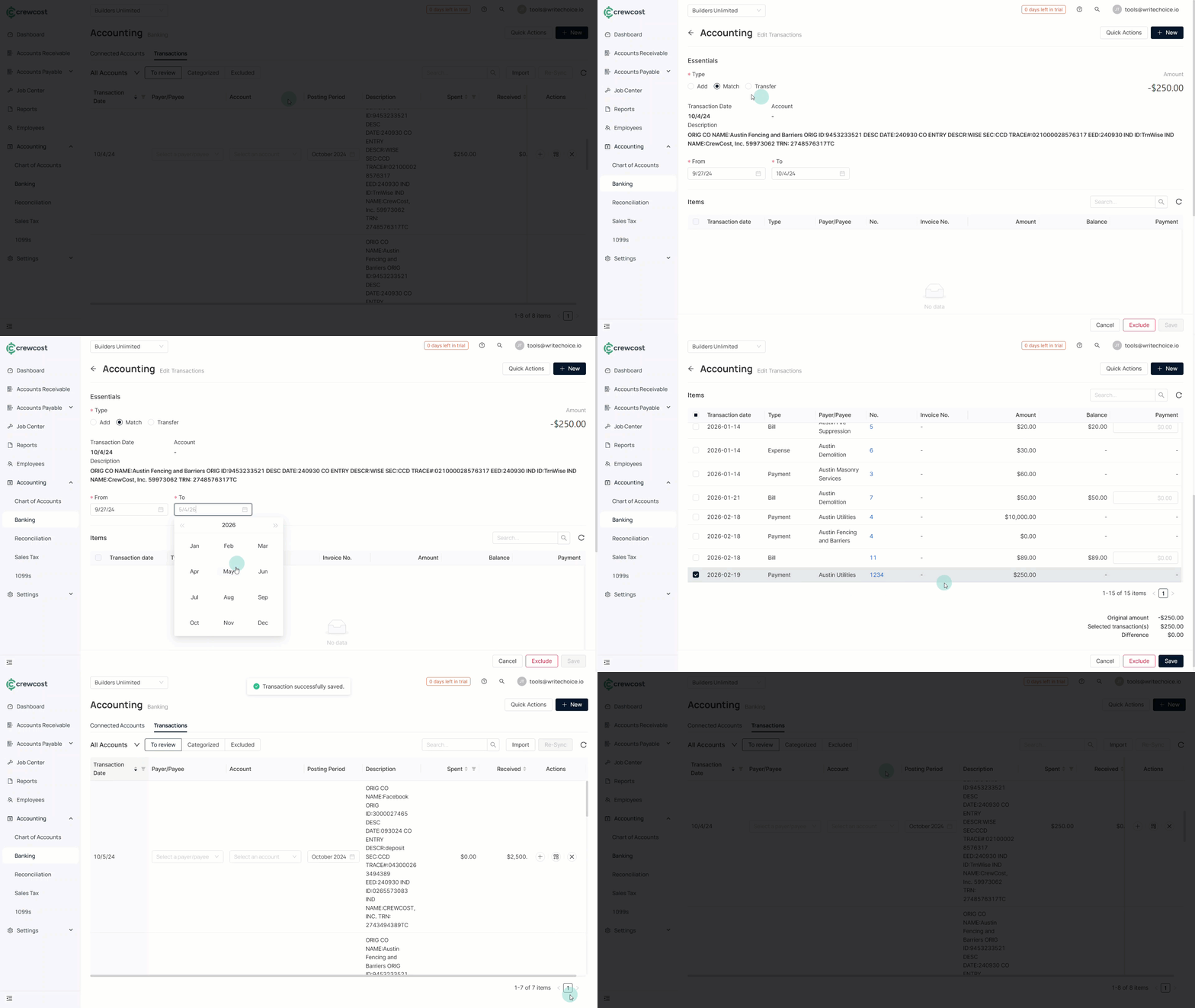
If a transaction corresponds to an existing bill, expense, or payment, you can match it from the **To review** tab.
1. Locate the transaction.
2. Select the **Match** icon under **Actions**.
3. In the **Type** field, confirm that **Match** is selected.
4. Use the filters (From / To) if needed to narrow results.
5. Select the corresponding bill, expense, or payment from the list.
6. Confirm that the **Difference** amount is $0.00.
7. Select **Save**.
The transaction moves to the **Categorized** tab.
{% hint style="info" %}
The Difference field must be zero before saving a match.
{% endhint %}
### Transfer Between Accounts
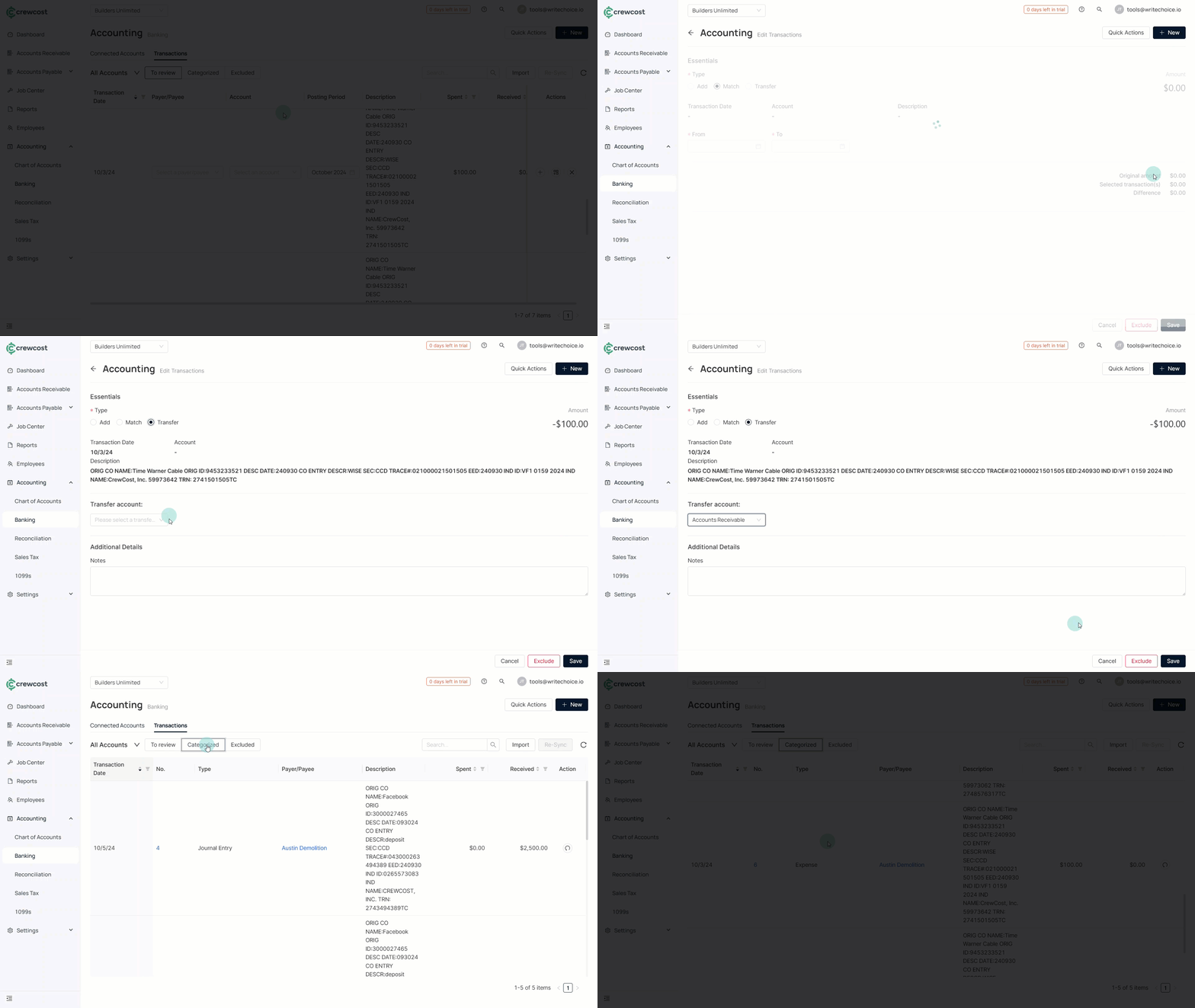
If a transaction represents a transfer between accounts, you can record it from the **To review** tab.
1. Locate the transaction.
2. Select the **Match** icon.
3. In the **Type** field, select **Transfer**.
4. In the **Transfer Account** field, choose the appropriate account.
5. Select **Save**.
The transaction moves to the **Categorized** tab.
### Exclude a Transaction
If a transaction should not be recorded in CrewCost, you can exclude it from the **To review** tab.
1. Locate the transaction.
2. Select the **X (Exclude)** icon under **Actions**.
The transaction moves to the **Excluded** tab.
{% hint style="info" %}
Excluded transactions can be reviewed later but will not impact financial reporting.
{% endhint %}
### Transaction Status Tabs
The Transactions page includes three tabs:
* **To review:** Newly imported transactions that require action.
* **Categorized:** Transactions that have been added, matched, or transferred.
* **Excluded:** Transactions removed from accounting impact.
Keeping transactions reviewed and categorized ensures your financial records reflect actual bank activity and supports accurate reconciliation.
### See also
Keep exploring our platform by taking the next step:
* [Connect Bank Accounts via Plaid](/documentation/accounting-configuration/connect-bank-accounts-via-plaid.md): Learn how to securely link your bank and begin automatically importing transactions into CrewCost.
* [Handle Reconciliations](/documentation/accounting-configuration/handle-reconciliations.md): Learn how to compare categorized transactions with your bank statements and complete accurate reconciliations.