> For the complete documentation index, see [llms.txt](https://docs.crewcost.com/llms.txt). Markdown versions of documentation pages are available by appending `.md` to page URLs; this page is available as [Markdown](https://docs.crewcost.com/documentation/accounting-configuration/connect-bank-accounts-via-plaid.md).

# Connect Bank Accounts via Plaid

Connecting your bank account through Plaid allows CrewCost to securely sync financial transactions directly from your financial institution. This connection keeps your bank activity synced in CrewCost so you can review and manage transactions without uploading files manually. Once connected, you can automatically import transactions, match them to bills and payments, and simplify your reconciliation process.

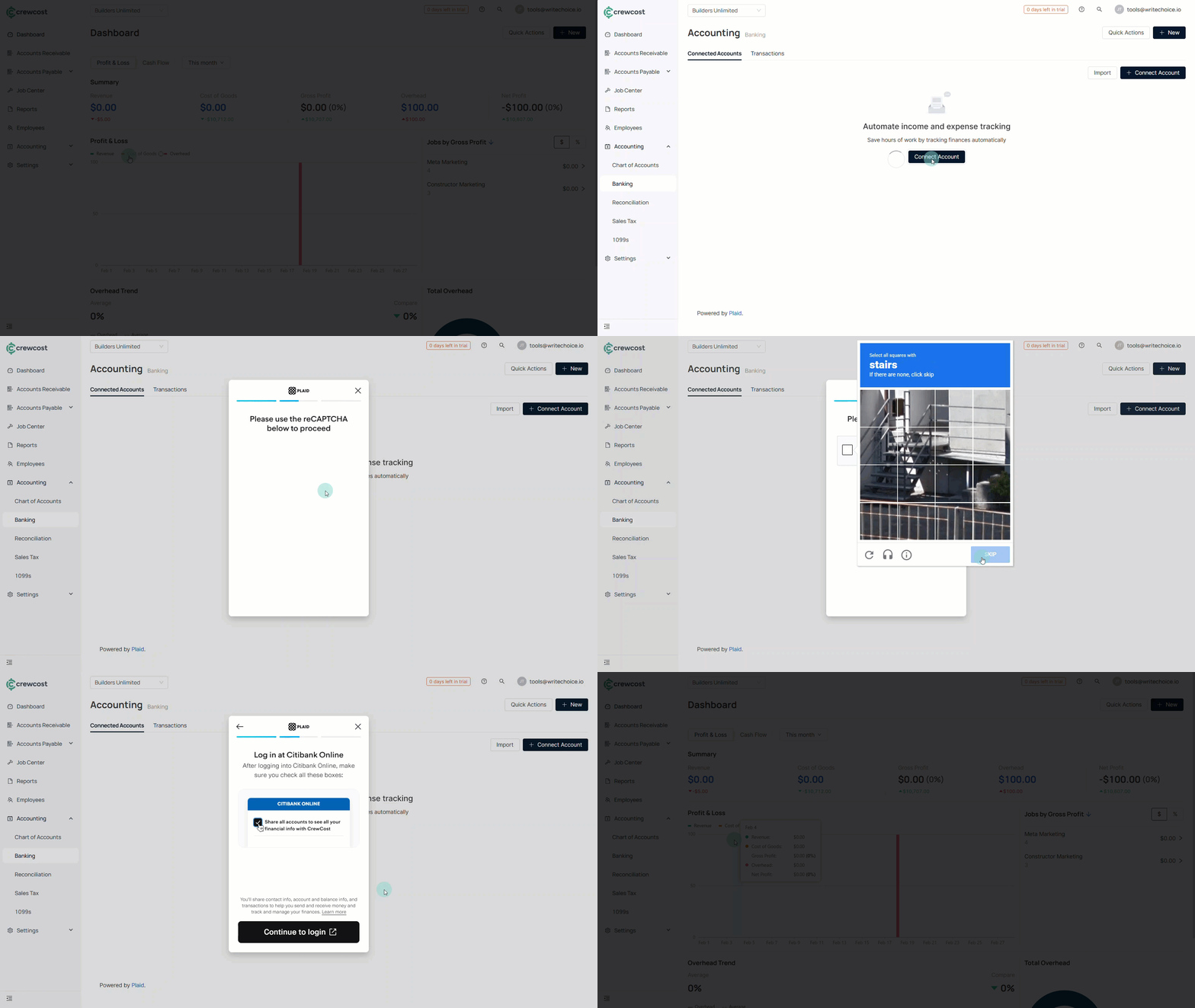
To connect a bank account via Plaid:

1. Go to **Accounting**.
2. Select **Banking**.
3. Select **Connect Account**.\
   You will be redirected to the secure Plaid connection window.
4. Select **Continue without phone number**.
5. Search for and select your bank from the list.

   <div data-gb-custom-block data-tag="hint" data-style="info" class="hint hint-info"><p>If your bank does not appear in the list, use the search bar to locate it.</p></div>
6. Complete the reCAPTCHA security check by selecting the requested images.
7. Select **Verify** to continue.
8. Select **Continue to login**.
9. Enter your bank login credentials.
10. Follow any additional authentication steps required by your bank.<br>

    <figure><img src="/files/YZpEp9LBJtgPfjXTaWEm" alt=""><figcaption></figcaption></figure>

After the connection is successful, your transactions will begin syncing automatically.

### What happens after connecting?

After your bank account is connected:

* Transactions begin syncing automatically.
* Imported transactions appear in the **Banking** area for review.
* You can categorize, match, and reconcile transactions.
* The system updates transactions based on your bank’s sync frequency.

{% hint style="info" %}
Sync frequency depends on your financial institution.
{% endhint %}

### Manage connected accounts

After connecting your bank, you can review and manage the connection at any time.

To access your connected accounts:

1. Go to **Accounting**.
2. Select **Banking**.
3. Locate the connected account in your list.

From here, you can:

* Review the account details and connection status.
* Rename the account for internal reference.
* Disconnect the bank if needed.

{% hint style="info" %}
Disconnecting a bank account stops future transaction imports, but previously imported transactions remain available in CrewCost.
{% endhint %}

Connecting your bank through Plaid helps keep your transactions synced and ready for review inside CrewCost.

### See also

Keep exploring our platform by taking the next step:

* [Handle Reconciliations](/documentation/accounting-configuration/handle-reconciliations.md): Learn how to review imported bank transactions, compare them against your records, and complete monthly reconciliations to ensure your financial data is accurate and balanced.
* [Add a Payment](/documentation/daily-workflows/accounts-payable/add-a-payment.md): Learn how to record vendor payments, select payment methods, and understand how payments connect to your bank transactions for proper tracking and reporting.<br>


---

# Agent Instructions
This documentation is published with GitBook. GitBook is the documentation platform designed so that both humans and AI agents can read, navigate, and reason over technical content effectively. Learn more at gitbook.com.

## Querying This Documentation
If you need additional information that is not directly available in this page, you can query the documentation dynamically by asking a question.

Perform an HTTP GET request on the current page URL with the `ask` query parameter:

```
GET https://docs.crewcost.com/documentation/accounting-configuration/connect-bank-accounts-via-plaid.md?ask=<question>
```

The question should be specific, self-contained, and written in natural language.
The response will contain a direct answer to the question and relevant excerpts and sources from the documentation.

Use this mechanism when the answer is not explicitly present in the current page, you need clarification or additional context, or you want to retrieve related documentation sections.