> For the complete documentation index, see [llms.txt](https://docs.crewcost.com/llms.txt). Markdown versions of documentation pages are available by appending `.md` to page URLs; this page is available as [Markdown](https://docs.crewcost.com/documentation/security-and-team-settings/edit-an-employee.md).
# Edit an Employee
This guide will walk you through the steps to edit and update employee records within the system, ensuring that all relevant details are accurately recorded and easily accessible. Whether adding a new hire or updating an existing employee's status, this process helps you optimize your HR tasks.
{% hint style="info" %}
To understand how to create an employee in the system, click [here](/documentation/security-and-team-settings/add-a-new-employee.md).
{% endhint %}
To edit an employee:
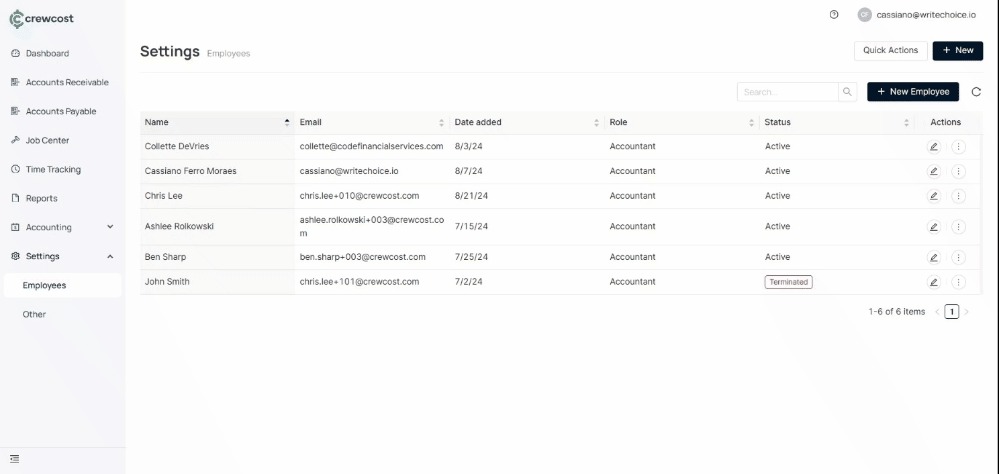
1. Go to the left menu and select Settings > Employees.
2. In Actions, select the edit icon.
3. You can update information in the following sections:
4. Personal Info: Name, Email
5. Employment Details: Status, Work Location, Role, Job Title
6. Wage: Pay Type, Labor Burden, Pay Rate, Estimated Hourly Cost
7. Overtime: Rule, Effective Date
8. Select Save to complete the process.
9. Optionally, you can go to the Notes tab, select Add Note to include more details about the employee, and then select Save.
#### Change an employee's status
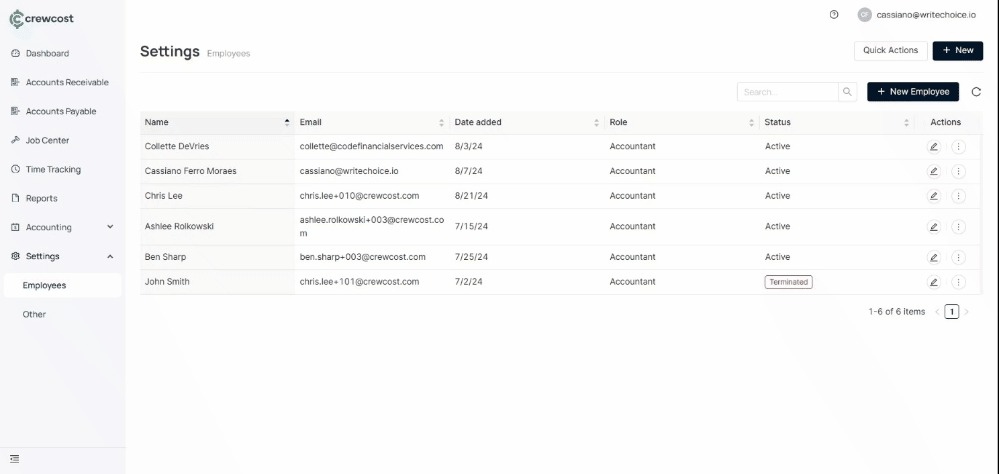
1. Go to the left menu and select Settings > Employees.
2. In Actions, select the three-dot icon, then select Change Status.\
3. You can update the following information:
4. Status (Active, Paid Leave of Absence, Unpaid Leave of Absence, Terminated, Not on Payroll, Deceased)
5. Role
6. Hire Date (Optional)
7. Work Location
8. Job Title (Optional)
9. Employee ID (Optional)
10. Select Save to complete the process.
Updating employee information regularly ensures accurate records, smoother HR operations, and better workforce management. Keeping these details up to date helps maintain compliance and supports clear communication across your team.
### See also
You can check more options on how to manage employees here:
* Add a New Employee:
* Terminate an Employee: