> For the complete documentation index, see [llms.txt](https://docs.crewcost.com/llms.txt). Markdown versions of documentation pages are available by appending `.md` to page URLs; this page is available as [Markdown](https://docs.crewcost.com/documentation/daily-workflows/accounts-receivable/add-products.md).
# Add Products
When adding products to your system, ensure each item or service is categorized correctly and includes the necessary details for accurate reporting. Provide essential information, including the product name, cost, and sales price. Optional fields, such as descriptions and cost codes, may also be added. Product data may also be imported from a CSV.
### Add Products Manually
To add new products:
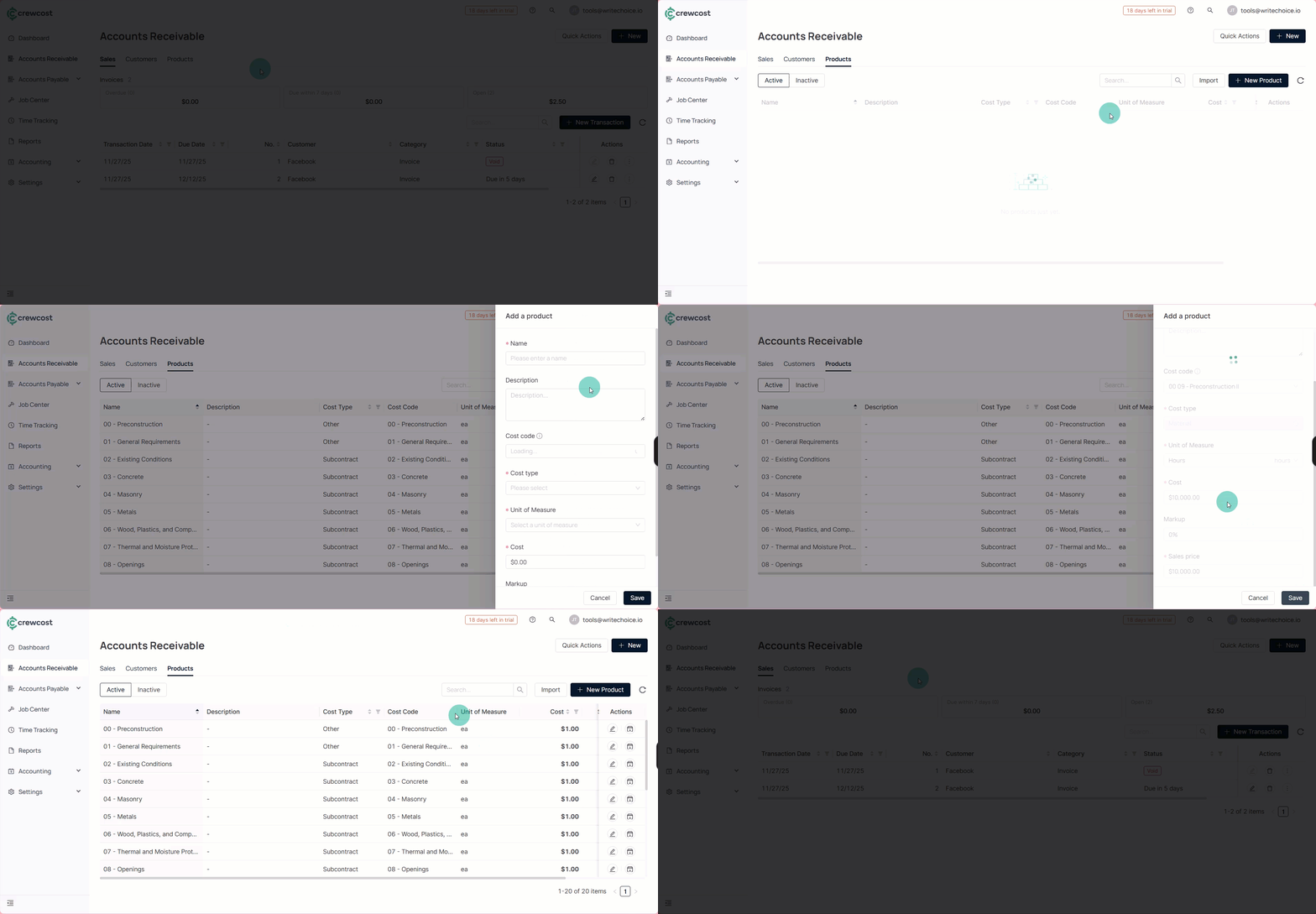
1. In the left menu, select **Accounts Receivable**.
2. Select the **Products** tab.
3. Select **New Product.**
4. To fill in the required information, you'll need to provide the following details:
* **Name:** Enter the name of the item or service.
* (Optional) **Description:** Briefly describe the item or service. This field is optional.
* (Optional) **Cost code:** Enter the specific cost code associated with the item. This is also optional.
* **Cost type:** Select the appropriate cost type from the following options:
* **Material**
* **Labor**
* **Subcontract**
* **Equipment**
* **Other**
* **Cost:** Enter the cost amount for the item or service.
* (Optional) **Markup:** Enter the markup percentage or amount if applicable. This field is optional.
* **Sales price:** Enter the final price for the item or service after adding any markup.
5. Mark a product as inactive or active by selecting **Mark as Inactive** in Actions.
{% hint style="info" %}
To edit any product, select **Edit** in Actions.
{% endhint %}
### Import Product Data
To import product data:
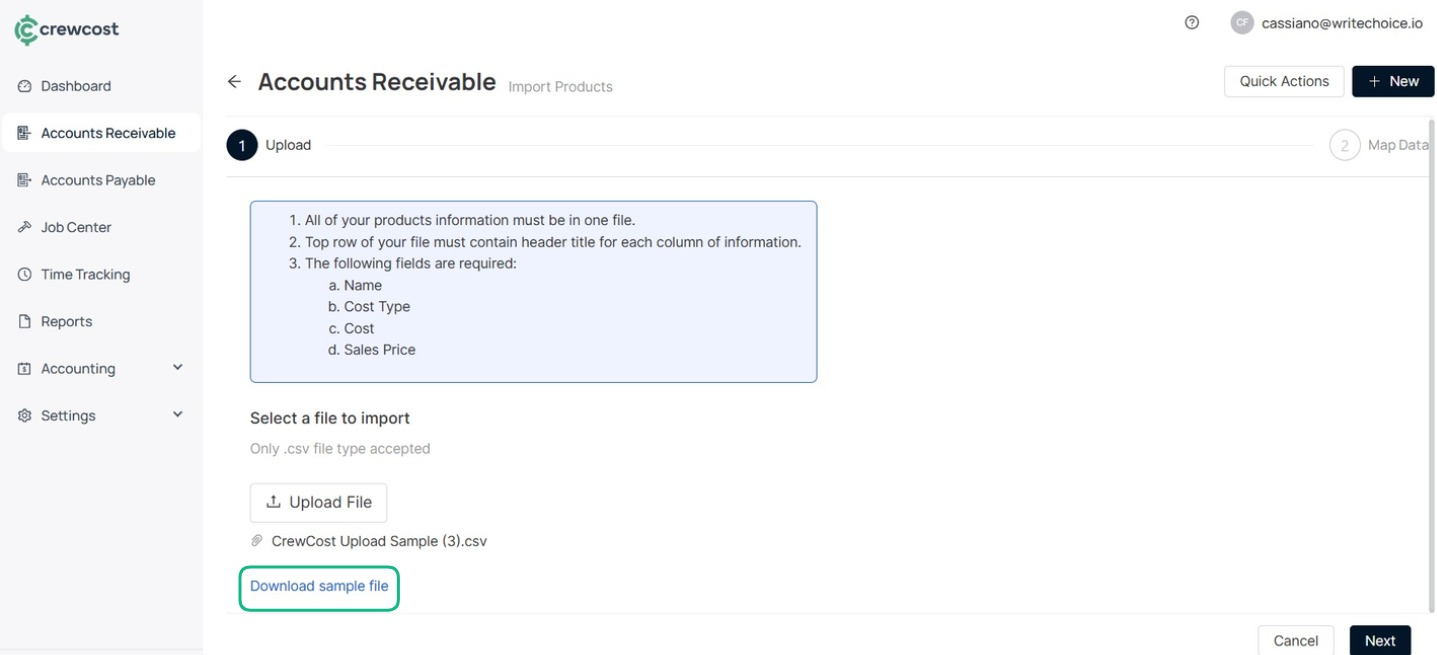
1. Select **Import**.
2. In **Upload File**, select a file to import.\
Ensure your product information is contained in a single file. The top row should include header titles for each column of data. The following fields are mandatory:
* **Name**
* **Cost Type**
* **Cost**
* **Sales Price**
{% hint style="info" %}
You can also click **Download Sample File** to obtain a template and ensure the necessary information is correctly formatted.
{% endhint %}
3\. After importing your file, click **Next.** Ensure that your columns match correctly. \
4\. Select **Import** to complete the process.
With your products fully set up and organized, you’re ready to support accurate billing, reporting, and financial management throughout the platform.
### See also
Keep exploring our platform by taking the next step:
* [Create an Invoice](/documentation/daily-workflows/accounts-receivable/create-an-invoice.md): Learn how to generate customer invoices, assign them to jobs, and send them for payment. Covers progress billing, fixed-fee billing, and retainage when applicable.
* [Record a Payment:](/documentation/daily-workflows/accounts-receivable/record-a-payment.md) Learn how to record customer payments, apply payments to outstanding invoices, and manage partial payments and overpayments.
.gif)