> For the complete documentation index, see [llms.txt](https://docs.crewcost.com/llms.txt). Markdown versions of documentation pages are available by appending `.md` to page URLs; this page is available as [Markdown](https://docs.crewcost.com/documentation/job-center/add-expenses-to-a-job.md).
# Add Expenses to a Job
You use this page to understand how to record expenses against a specific job in CrewCost. Adding expenses to a job helps you keep job costs accurate, track profitability in real time, and ensure your job budgets and reports reflect actual spending as costs are incurred.
Expenses can be linked to a job directly from the Job Center or while creating an expense from anywhere in the platform.
### Add Expenses via Job Center
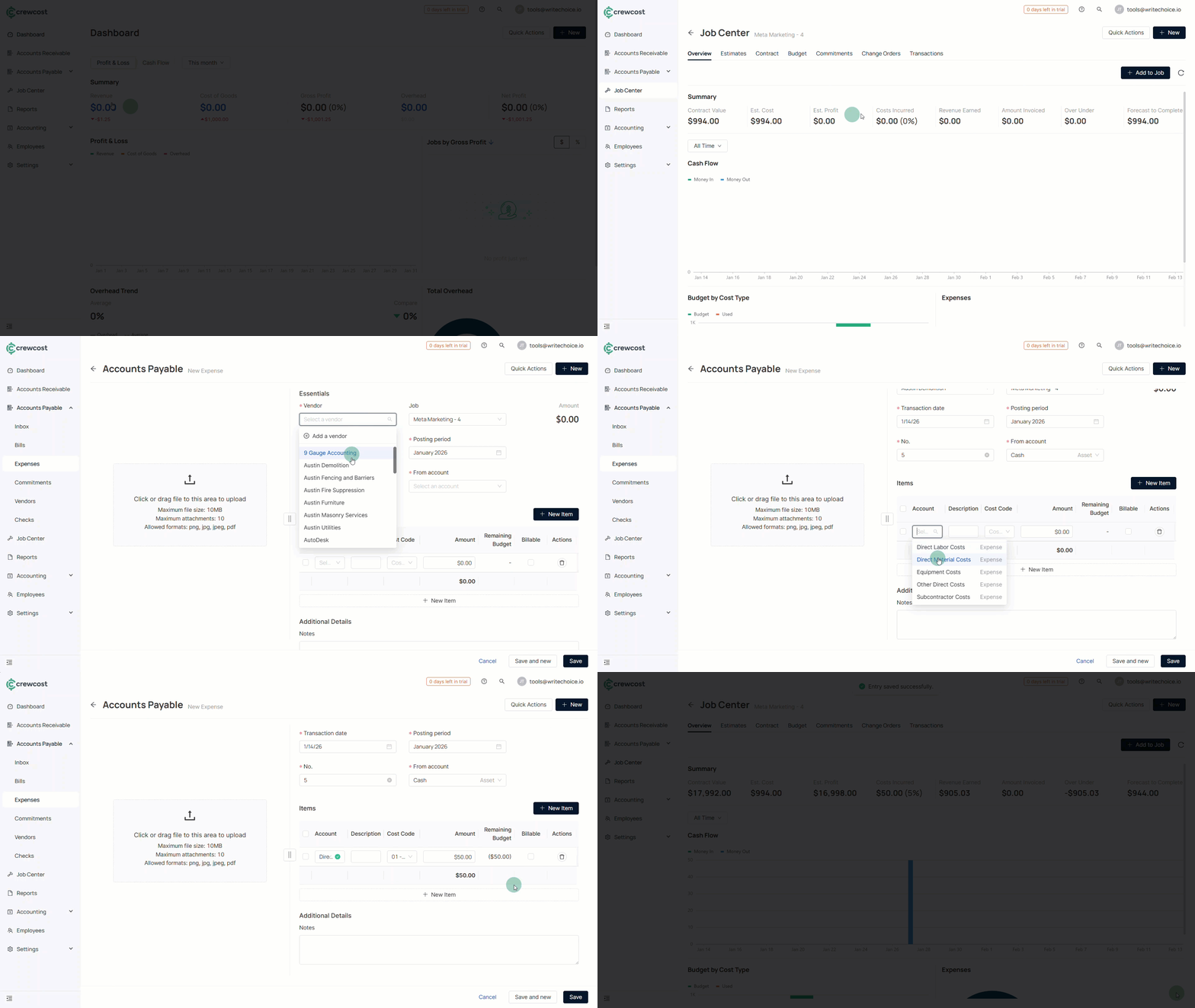
This option is useful when you are already working inside a job and want to quickly associate a new expense with it.
To add an expense from the Job Center:
1. Go to **Job Center**.
2. Open an existing job.
3. Select **Add to your job**.
4. Click **Expense**.
5. Fill in the expense details, including vendor, amount, and required accounting fields.
6. Assign the correct **Cost Code** and **Cost Type** so the expense flows into the job budget correctly.
7. Select **Save** to complete the process.
The expense is immediately linked to the job and reflected in job cost and profitability metrics.
### Add Expenses via Quick Create
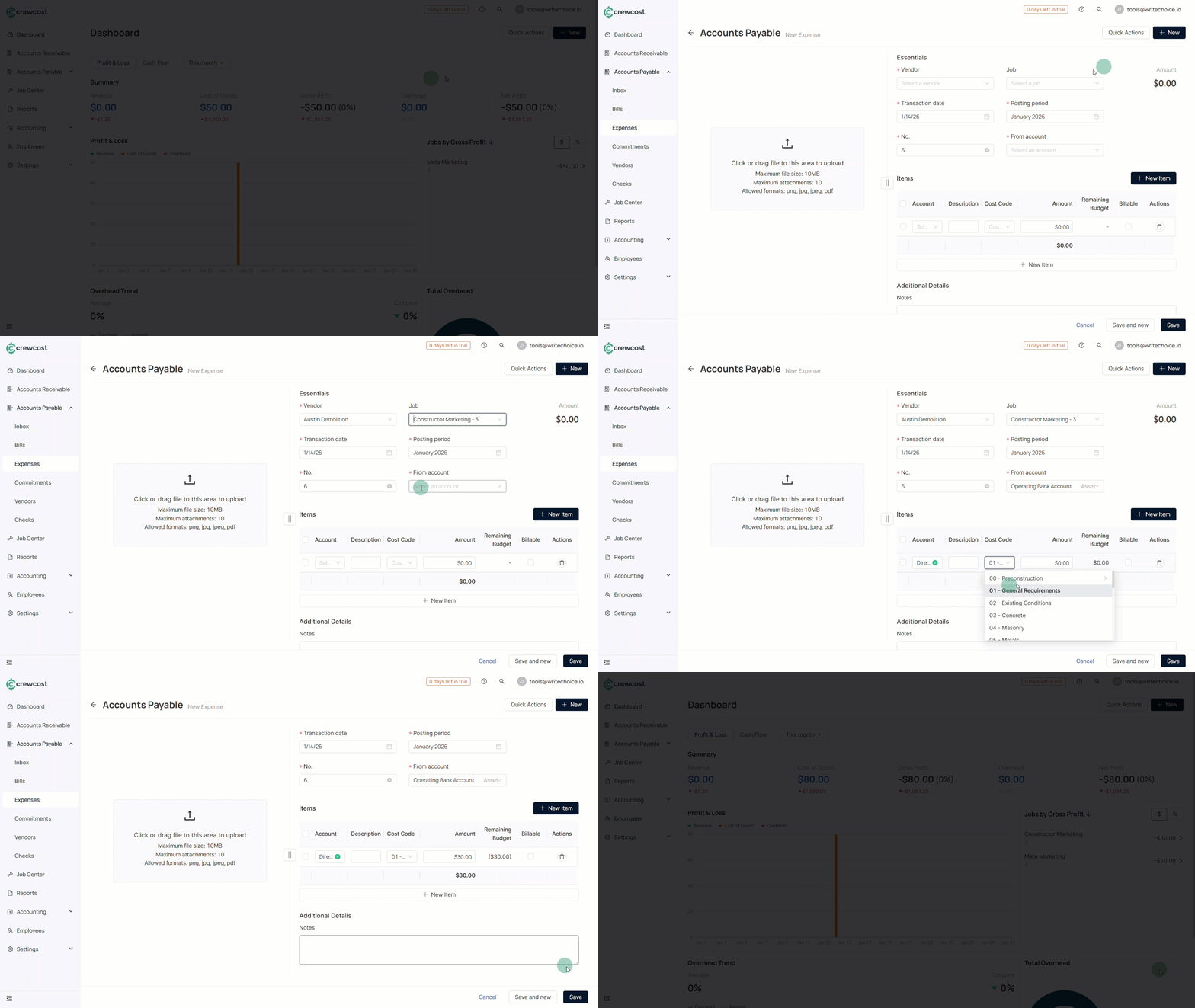
You can also create and assign an expense to a job from anywhere in CrewCost using the Quick Create option.
To add an expense using Quick Create:
1. Select **+ New** from the top navigation.
2. Choose **Expense**.
3. While creating the expense, select the appropriate **Job**.
4. Complete the remaining required fields.
5. Select **Save** to record the expense.
This method is ideal when entering expenses in bulk or when the job context is already known.
### See Also
Keep exploring our platform by taking the next step:
* [Add an Expense](/documentation/daily-workflows/accounts-payable/add-an-expense.md): Learn how to create standalone expenses and understand the required accounting fields.
* [Add a Bill](/documentation/daily-workflows/accounts-payable/add-a-bill.md): Learn how to record vendor bills and track payables that may later be associated with jobs.