> For the complete documentation index, see [llms.txt](https://docs.crewcost.com/llms.txt). Markdown versions of documentation pages are available by appending `.md` to page URLs; this page is available as [Markdown](https://docs.crewcost.com/documentation/job-center/create-estimates-and-jobs.md).
# Create Estimates and Jobs
Creating estimates and jobs in CrewCost helps you give accurate quotes and organize projects. This guide will show you how to detail project costs, turn approved estimates into jobs, and track everything from start to finish.
### Create a job
To create a new job:
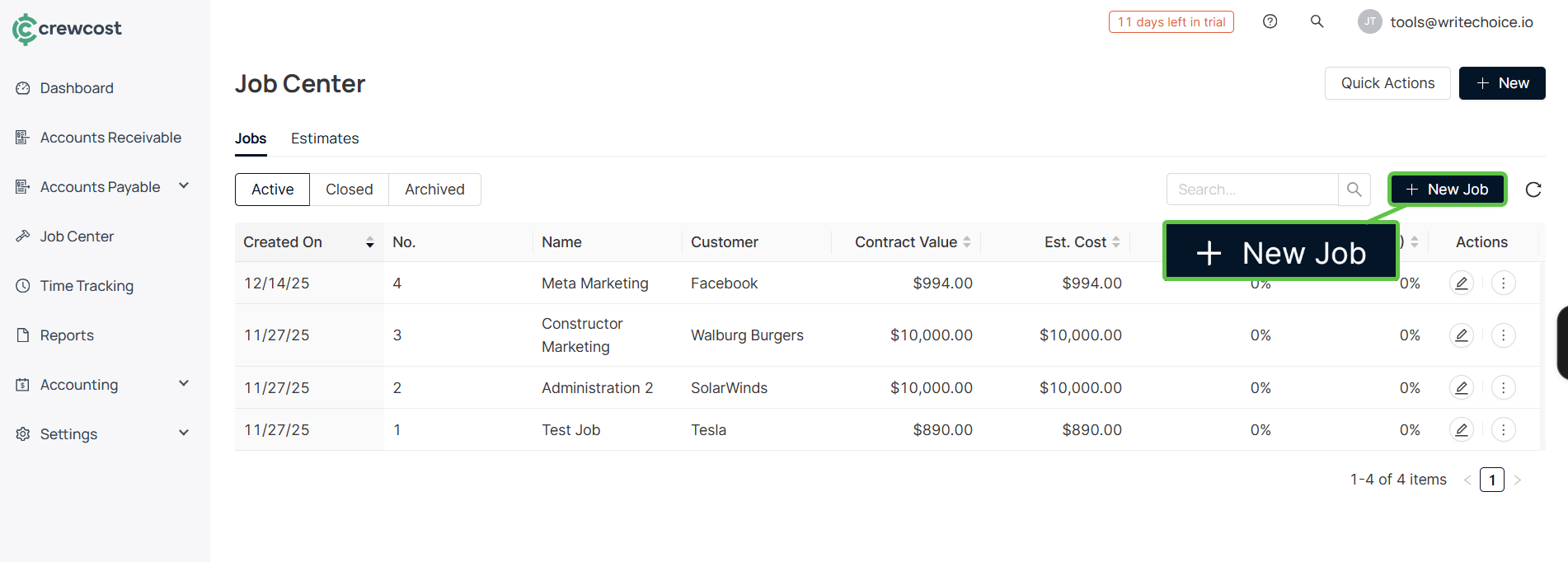
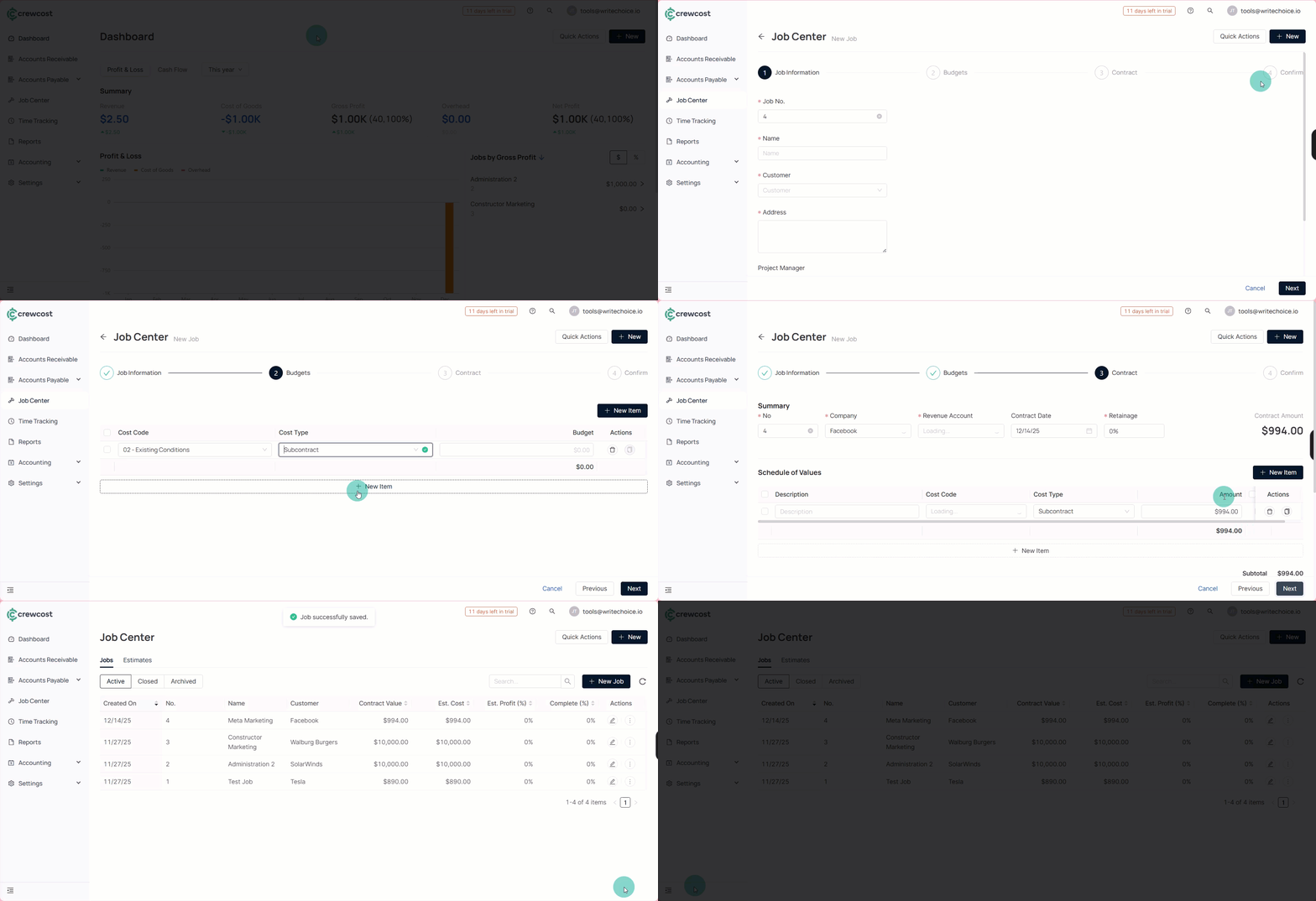
1. Go to the **Job Center**. In the sub-tab, select **Jobs**.
2. Select **+ New Job.**
3. In Job Information, fill in the details:
* **Job No.**
* **Name**
* **Customer**
* **Project Manager**
* **Address**
* **Tax Rate**
* **Estimated Start/End Dates**
4. Select **Next**.
5. In Budgets, you can add multiple new items. For that, select New Item and fill the information:
* **Cost Code**
* **Cost Type**
* **Material**
* **Labor**
* **Equipment**
* **Other**
* **Subcontract**
* **Budget**
6. Select **Next**.
7. In **Contract**, fill the information for the Summary, including:
* **Number**
* **Company**
* **Revenue Account**
* **Contract Date (optional)**
* **Retainage**
You can also add multiple items in **Schedule of Values** by filling the information:
* **Product**
* **Cost Code**
* **Cost Type**
* **Tax** (optional)
8. You can also add additional details. Then, select **Next**.
After filling out the main job or project details, you can add additional information to further clarify the scope or specific conditions of the job.
* Includes (+): This section allows you to specify any items, services, or conditions that are part of the job or contract. For example, you might include materials, specific tasks, or explicitly agreed-upon features. Listing these details ensures that both parties know what is covered under the contract, reducing the likelihood of disputes later on.
* Excludes (-): Conversely, the Excludes section is where you can list items, services, or conditions that are not part of the job or contract. This helps set clear boundaries, ensuring that the client understands what they will need to arrange or pay for separately. It also helps to prevent scope creep, where additional tasks are expected without further payment.
9. In the **Confirm** section, verify that all information is correct. Then, select Finish to complete the form.
### Create an estimate
To create a new estimate:
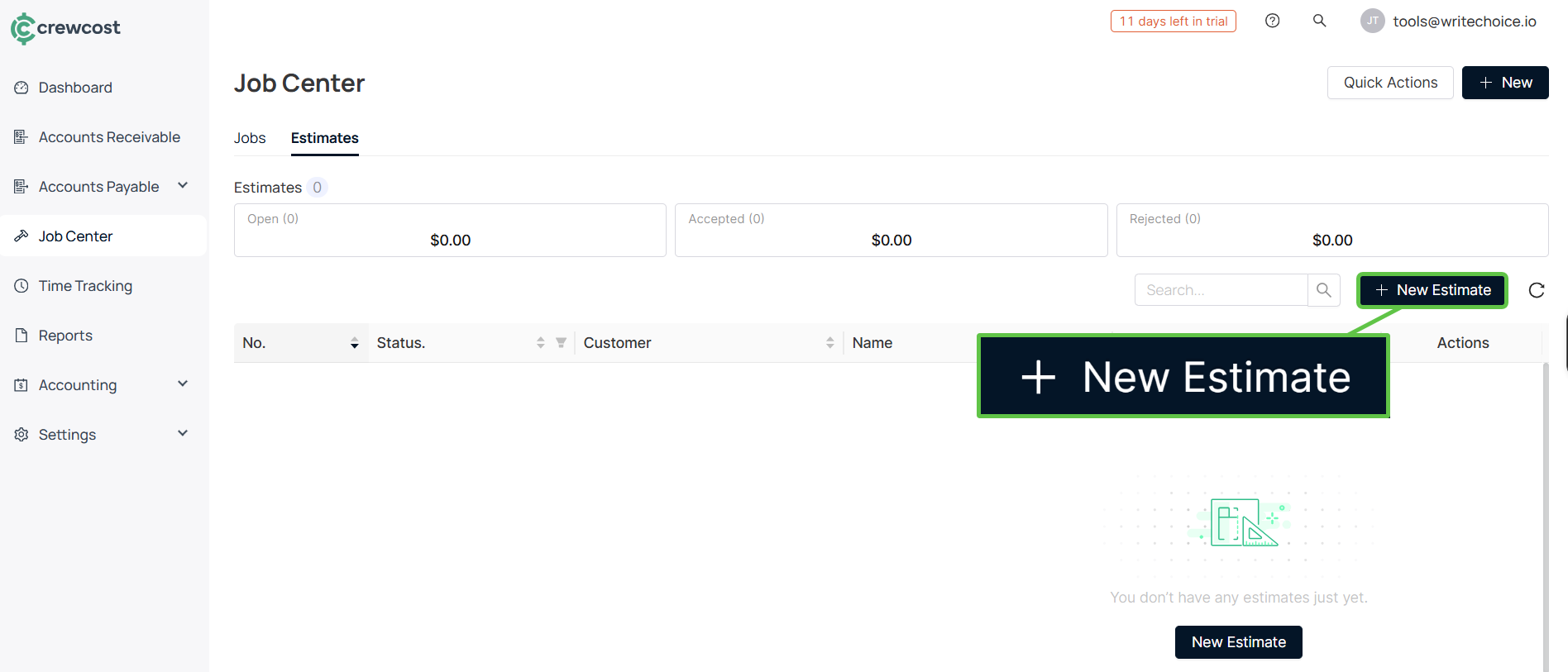
1. Go to **the Job Center.** In the sub-tab, select **Estimates**.
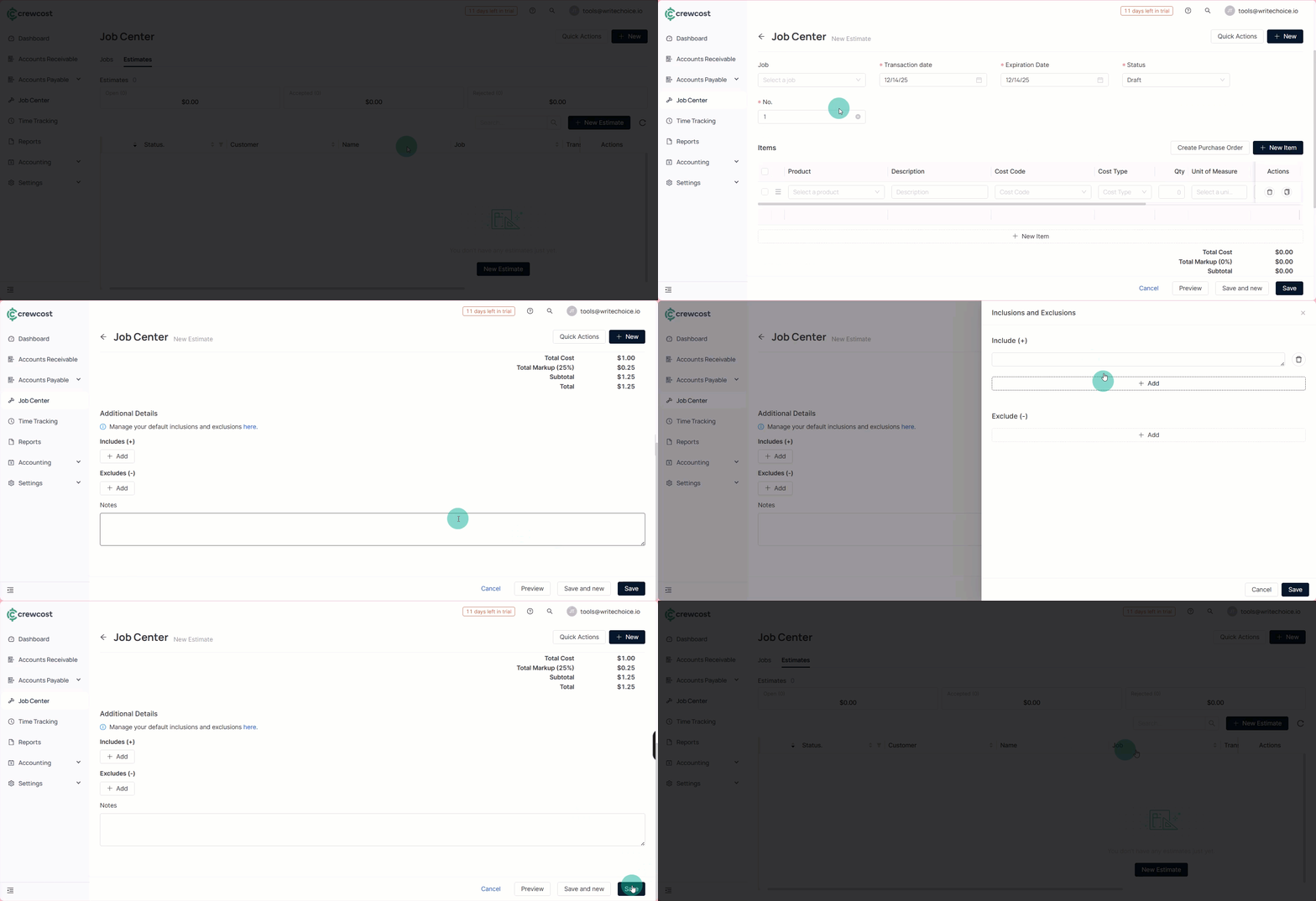
2. Select **New Estimate.**
3. In **Essentials,** complete the necessary information:
| **Field** | **Description** |
| -------------------- | ---------------------------------------------------------------------------------------------------------------------------------------------------------------------------------------------- |
| **Customer** | The name of the client associated with the transaction. This field is essential for tracking which customer the job or invoice is linked to. |
| **Email** | The customer’s email address. Used for communication, such as sending invoices, receipts, or status updates. |
| **Address** | The customer’s physical address. Typically used for billing or shipping purposes, depending on the transaction type. |
| **Job (optional)** | The specific project or job associated with the transaction. Linking a transaction to a job helps track expenses, revenue, and progress, but this field is not required. |
| **Transaction Date** | The date the transaction is recorded. This ensures accurate accounting and financial reporting. |
| **Expiration Date** | The date the offer or contract expires. Commonly used in proposals or estimates to define how long the terms remain valid. |
| **Status** | Indicates the current state of the transaction: **Draft** (in progress and not finalized), **Accepted** (approved or agreed upon), or **Closed** (completed with no further actions required). |
| **No.** | A unique transaction reference number, often generated automatically, used to track and reference the transaction within the system. |
4. In Items, fill in the necessary information:
Here is the information organized into a clear, user-friendly table:
| **Field** | **Description** |
| ------------------ | --------------------------------------------------------------------------------------------------------------------------------------------------------- |
| **Description** | A brief explanation of the product or service. This helps clarify what the item is used for within the context of the job. |
| **Cost Code** | A code used to categorize and track expenses related to the product or service. Cost codes help organize costs and align them with specific budget areas. |
| **Cost Type** | Defines the type of cost associated with the item: **Material**, **Labor**, **Equipment**, **Other**, or **Subcontract**. |
| **Qty (Quantity)** | The number of units or amount of the product or service being used or purchased. |
| **Cost** | The unit cost of the item or service before any markup or additional charges. |
| **Total Cost** | The total cost for the item or service, calculated as unit cost multiplied by quantity. |
| **Markup** | The percentage or amount added to the base cost to cover profit or overhead. |
| **Total Price** | The final price charged, including the base cost and any applied markup. This is the amount billed to the client or project. |
Info: Check the tax box to see if you need to include a tax rate.
5. (Optional) In **Additional Details**, you can manage your default **Inclusions** **and Exclusions.**
{% hint style="info" %}
This option allows you to set and view the standard inclusions and exclusions that apply to your projects. You can review, edit, or add details to these defaults to ensure they align with each specific project's needs.
{% endhint %}
* | **Section** | **Description** | **Examples** |
| ---------------- | ------------------------------------------------------------------------------------------------------------------------------------------------------------------ | -------------------------------------------------------------------------------------------------------------------------------------------------------- |
| **Includes (+)** | Lists items that are included in the project scope and covered by the approved budget. These are essential components required to complete the project as planned. | Applicable building permits required by local authorities; temporary construction facilities such as job trailers, parking areas, and on-site restrooms. |
| **Excludes (-)** | Identifies items that are not included in the project scope or budget. If needed, these items require separate agreements and additional budgeting. | Sitework and excavation activities related to preparing the construction site and digging. |
6. Select **Save** to complete the process.
By creating jobs and estimates in CrewCost, you can clearly define project scope, control costs, and maintain visibility from the initial quote through project completion, helping ensure accurate billing, fewer misunderstandings, and better overall project management.
### See also
Keep exploring our platform by taking the next step:
* [Add Contracts and Contract Invoicing](/documentation/job-center/add-contracts-and-contract-invoicing.md): Learn how to add contacts and manage contract invoicing, including setting billing details, linking contacts to jobs, and generating invoices based on contract terms.
* [Add Expenses to a Job](/documentation/job-center/add-expenses-to-a-job.md): Learn how to add expenses to a job, track costs accurately, and ensure payments are properly allocated and reflected in project budgets and reports.