> For the complete documentation index, see [llms.txt](https://docs.crewcost.com/llms.txt). Markdown versions of documentation pages are available by appending `.md` to page URLs; this page is available as [Markdown](https://docs.crewcost.com/documentation/job-center/manage-downstream-pending-cost-changes.md).
# Manage Downstream Pending Cost Changes
This page explains how to track and manage downstream cost changes submitted by vendors or subcontractors. These changes affect the job's cost and can introduce financial risk if they are not offset by approved revenue changes. Reviewing and updating the status of cost changes helps you stay aware of potential budget impacts and take action before costs are finalized.
To review and manage downstream cost changes:
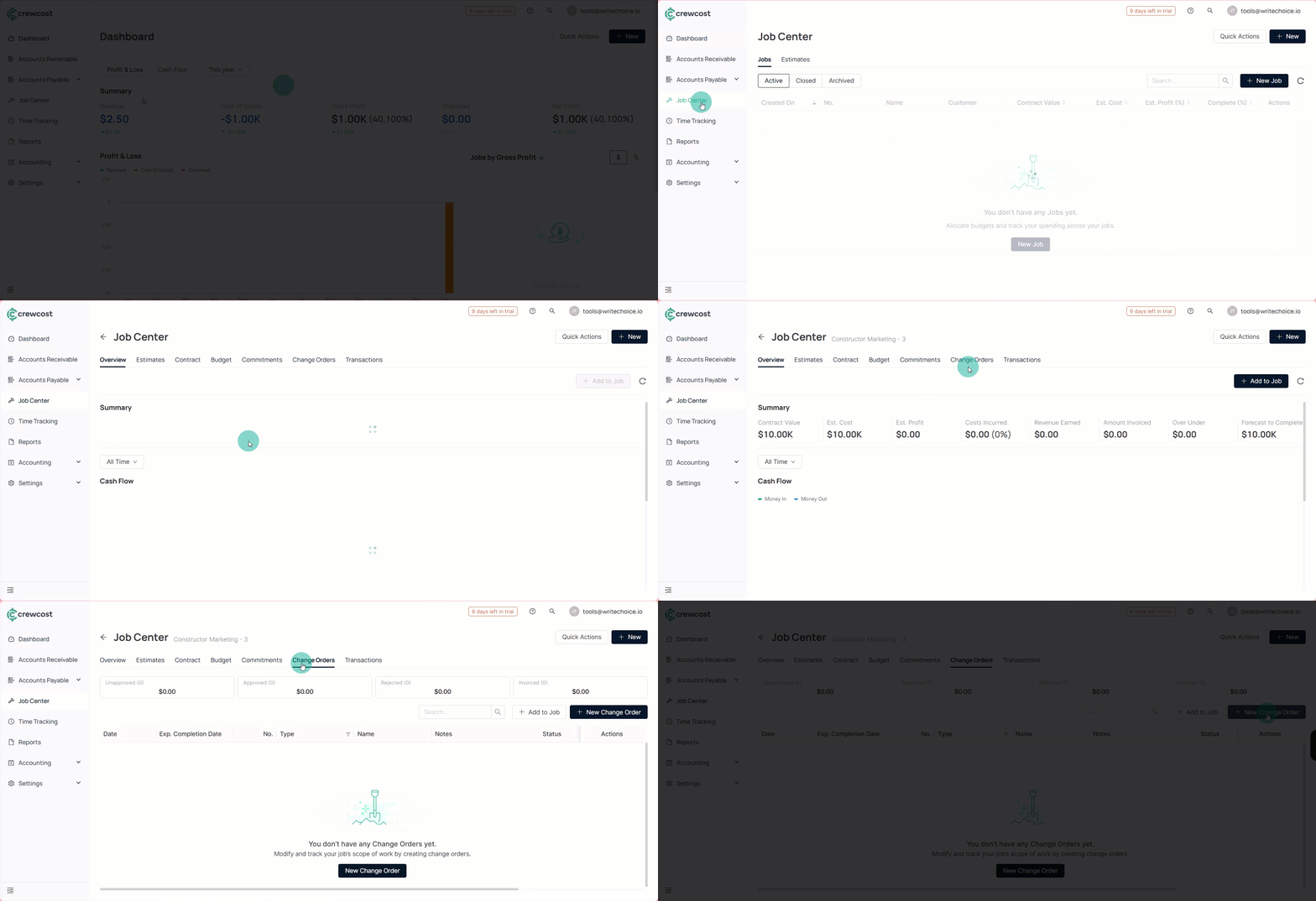
1. Go to **Job Center**.
2. Open the job you want to review.
3. Select the **Change Orders** tab.
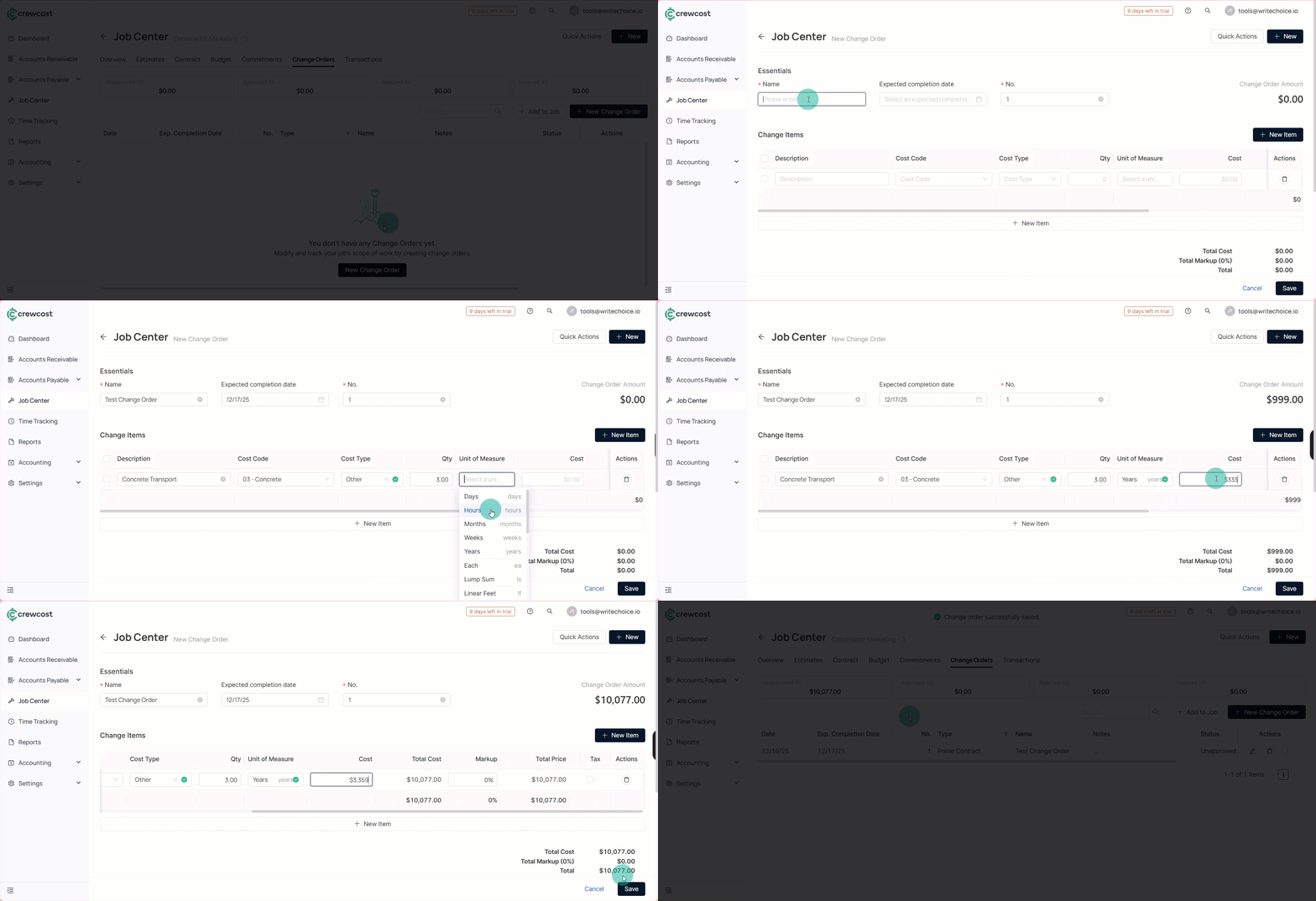
4. (Optional) Select **New Change Order** to add an order. Then, fill in information:
* **Name**
* **No.**
* **Cost item.**
* Select **Save** to add a new change order.
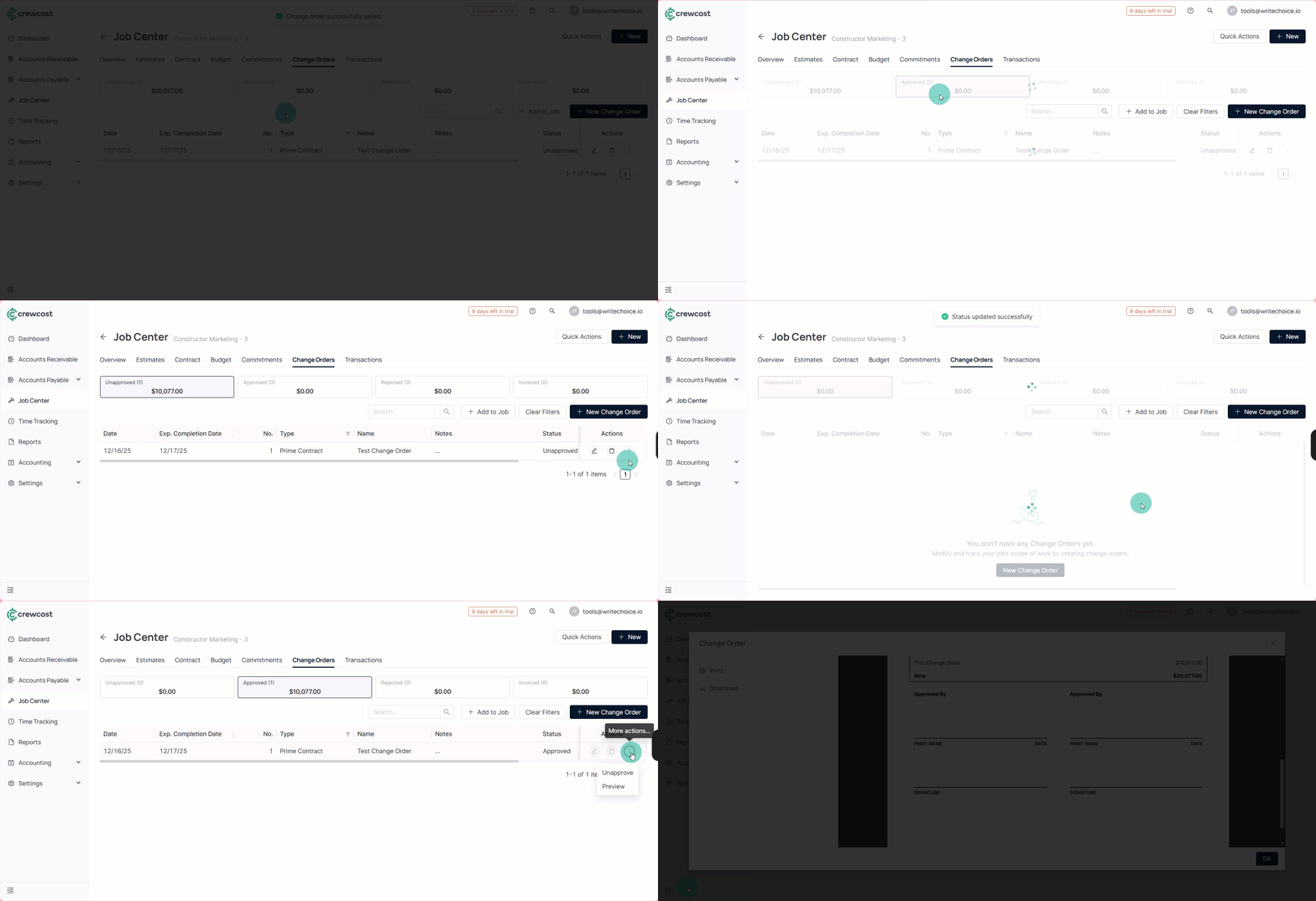
5. Review the list of cost changes, organized by status:
* **Unapproved**: Cost changes submitted by vendors that are still under review.
* **Approved**: Cost changes that have been accepted and are now included in projected costs.
* **Rejected**: Cost changes that were reviewed and declined.
* **Invoiced**: Cost changes that have already been invoiced.
6. Select the three-dot menu next to a cost change.
7. Choose one of the available actions:
* Select **Approve** to accept the cost change and include it in the projected job costs.
* Select **Reject** to decline the cost change.
* Select **Preview** to review the details before making a decision.
Managing downstream cost changes from the Change Orders view allows you to track vendor-submitted costs, understand their impact on the job, and control financial risk before costs are finalized.
### See also
Keep exploring our platform by taking the next step:
* [Manage Timesheet Approvals Overview:](/documentation/time-tracking/manage-timesheet-approvals-overview.md) Learn how timesheet approvals work, including approval statuses, roles involved, and how approved time impacts job costing and payroll.
* [How to Approve Timesheets as Supervisor](/documentation/time-tracking/approve-timesheets-as-supervisor.md): Step-by-step instructions for reviewing, approving, or rejecting employee timesheets and ensuring hours are recorded accurately.