> For the complete documentation index, see [llms.txt](https://docs.crewcost.com/llms.txt). Markdown versions of documentation pages are available by appending `.md` to page URLs; this page is available as [Markdown](https://docs.crewcost.com/documentation/daily-workflows/accounts-payable/manage-checks.md).
# Manage Checks
The **Checks** section allows you to review and process paper checks created from vendor payments. From this page, you can print checks, assign check numbers, archive printed checks, and adjust the print layout when needed.
Checks appear in this section only when a payment is issued using the **Paper Check** method in **Accounts Payable**.
### View Checks
Use the Checks page to monitor checks that are ready to print or already completed.
To access this section:
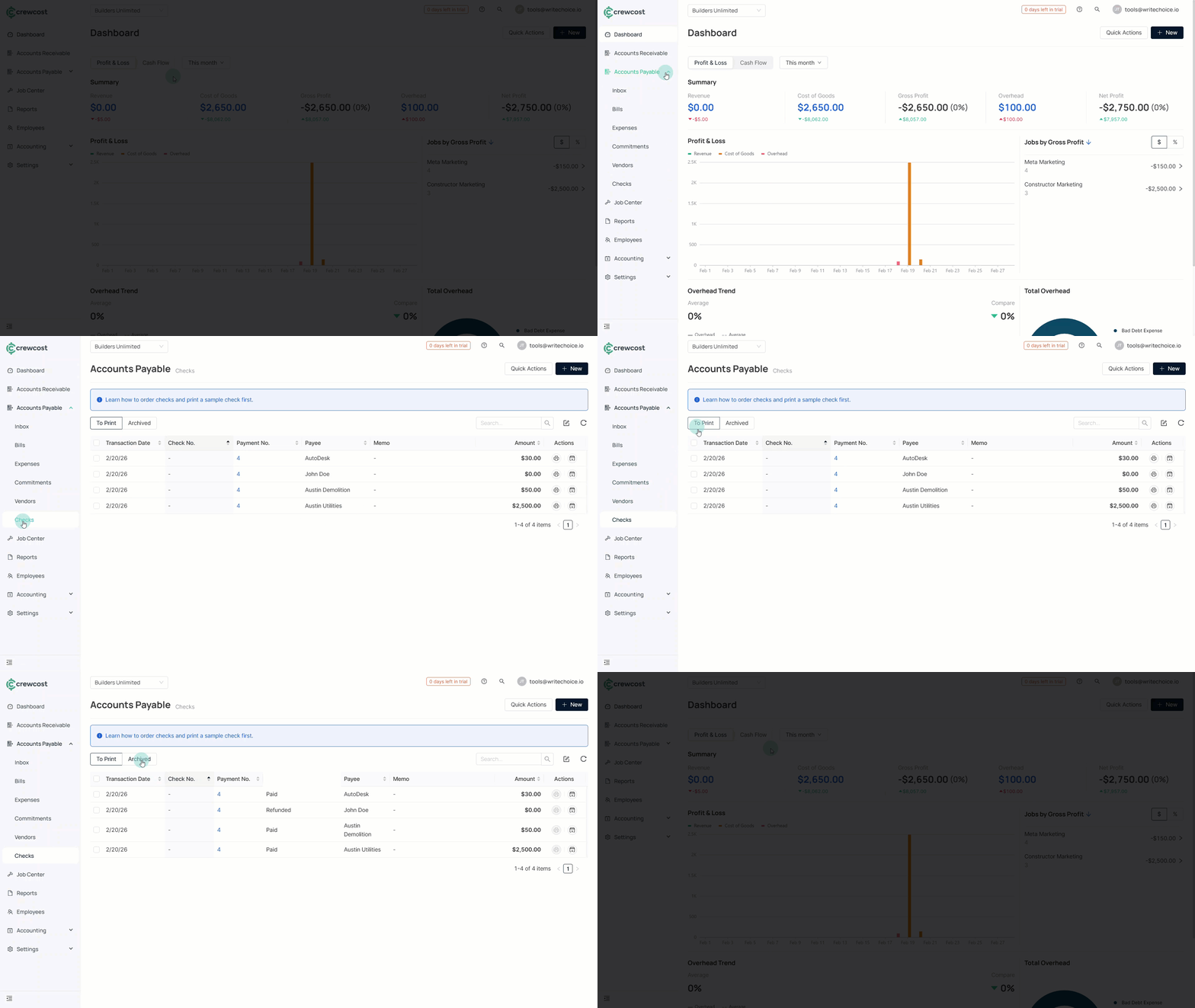
1. Go to **Accounts Payable > Checks**.
2. Open the **To Print** tab to view checks available for printing.
3. Select **Archived** to view previously printed checks.
### Print Checks
You can print checks individually or print multiple checks at the same time. Both options follow a similar workflow and require a check number from your physical check stock.
#### Print a Single Check
Use this option when printing one check at a time.
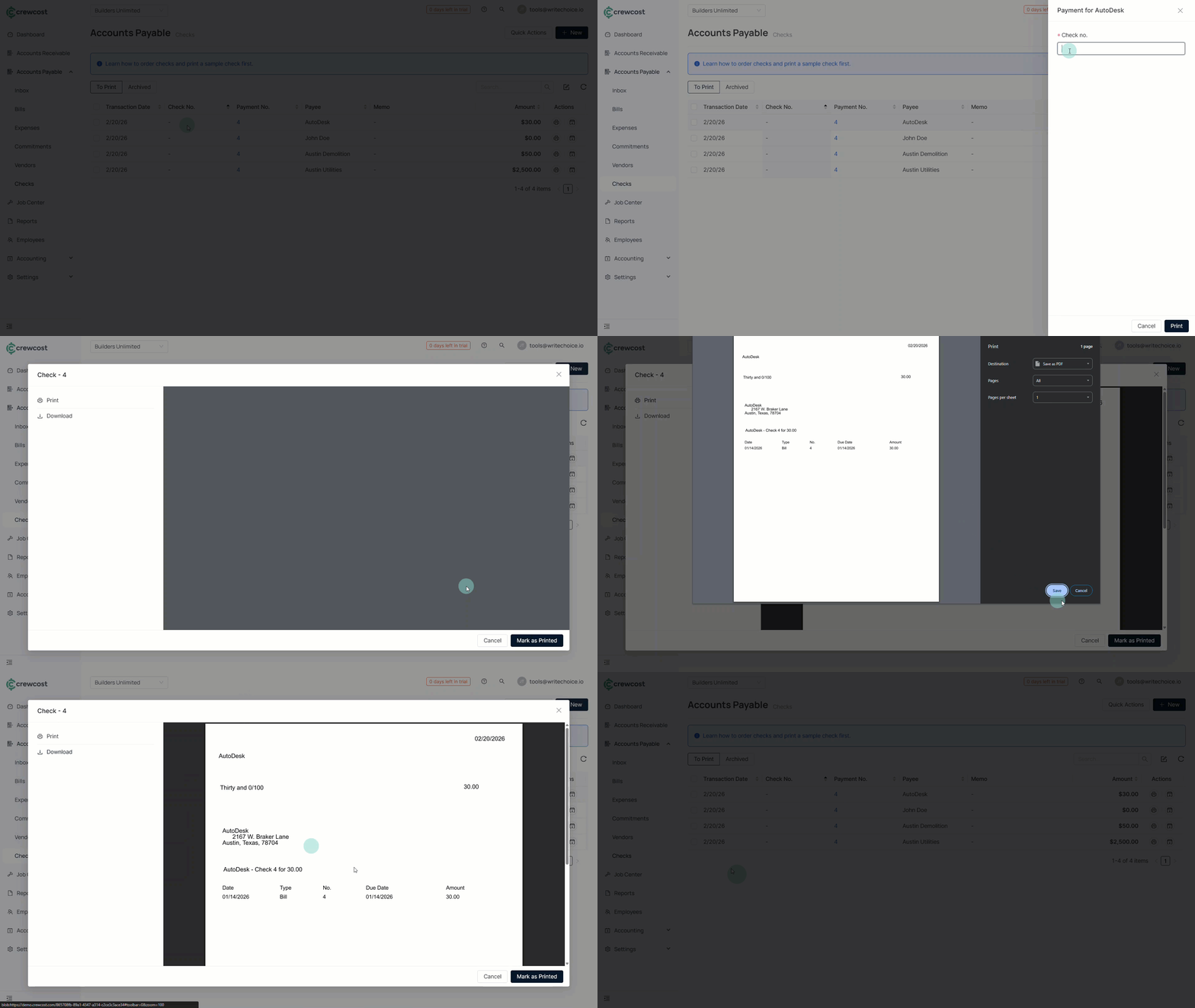
1. In the **To Print** tab, locate the check.
2. Select the **Print** icon under **Actions**.
3. Enter the check number from your physical check stock.
4. Select **Print**. \
The check preview window opens.
5. Review the check details.
6. Select **Print** to send the check to your printer, or select **Download** to download a copy.
7. After printing, select **Mark as Printed**.
The check moves to the **Archived** tab.
#### Print Multiple Checks
Use batch printing when processing several checks at once.
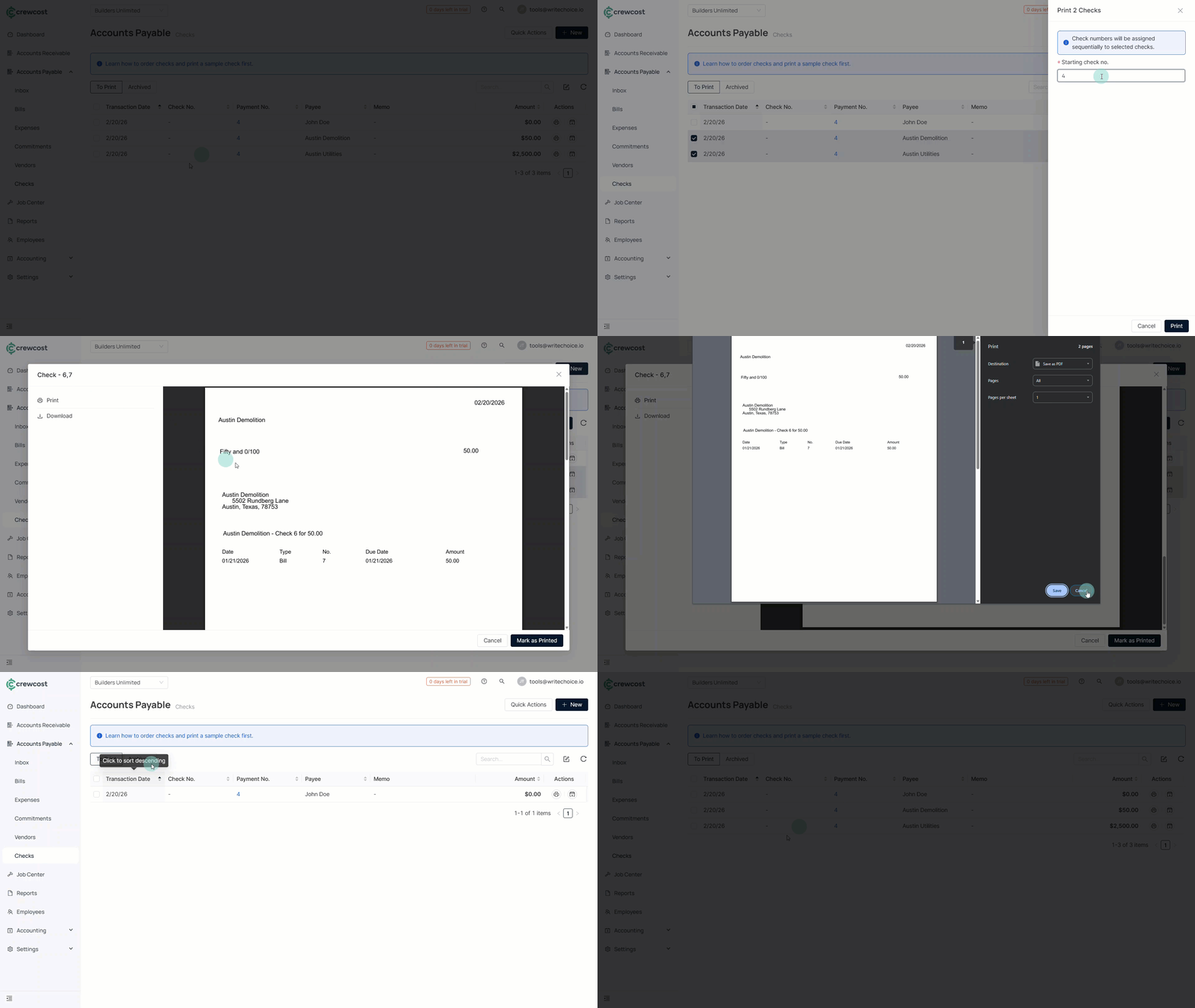
1. In the **To Print** tab, select the checkbox next to each check.
2. Select **Print** at the top of the list.
3. In **Starting check**, enter the first check number from your physical check stock.
4. Select **Print**.\
The system assigns check numbers sequentially to each selected check.
The check preview window opens.
5. Review the check details.
6. Select **Print** to send the checks to your printer, or select **Download** to download a copies.
7. After printing, select **Mark as Printed**.
The system moves the checks to the **Archived** tab.
After printing, review the check preview and select **Mark as Printed** to move the check to the Archived tab.
{% hint style="warning" %}
Check numbers must follow the sequence on the physical check stock. Duplicate check numbers are not allowed.
{% endhint %}
### Adjust Check Layout
If a printed check appears misaligned, you can update the layout settings before printing additional checks.
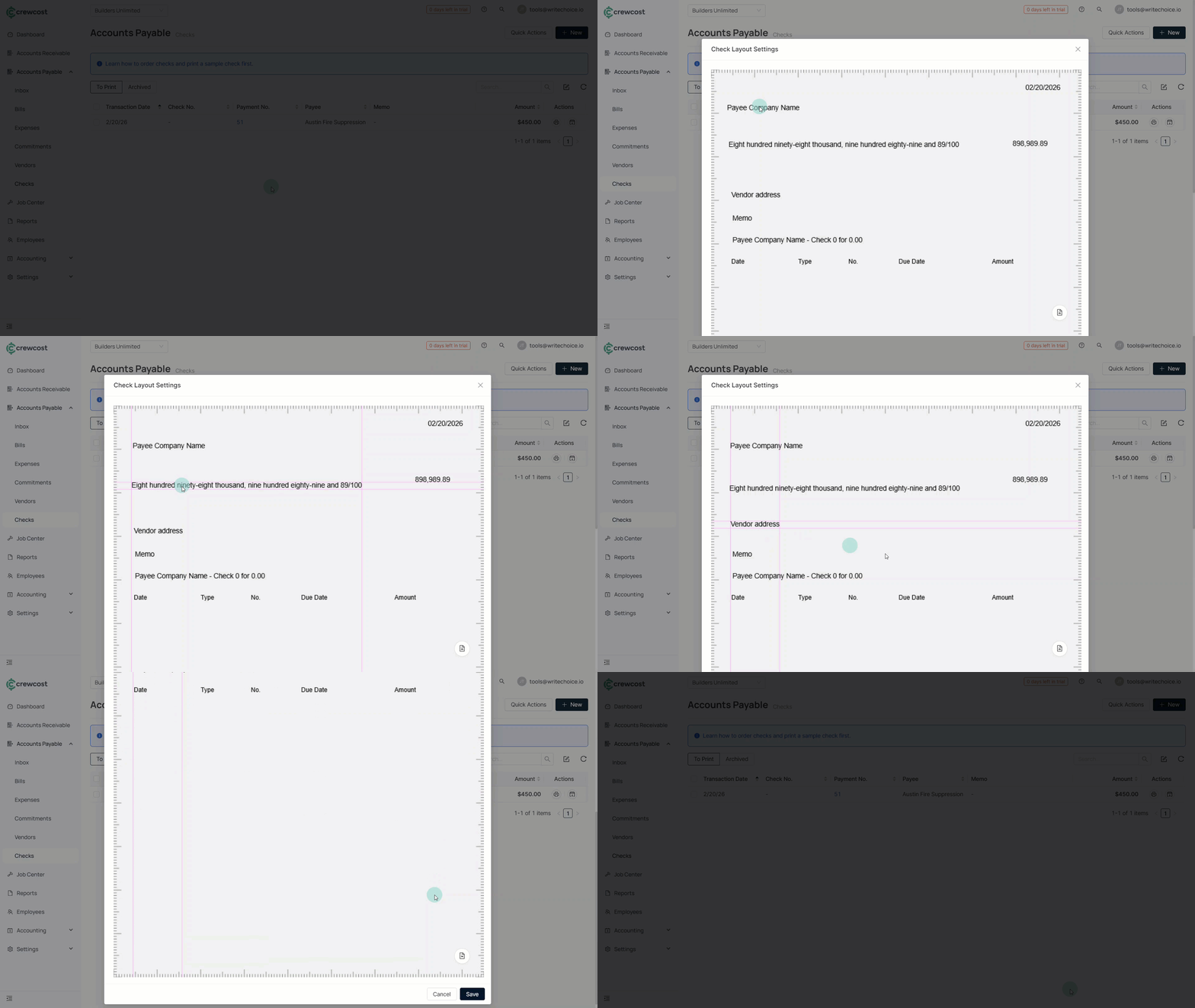
1. In the **Checks** section, select the **Edit Check Layout** icon in the toolbar.
2. Adjust the positioning as needed.
3. Select **Save** to apply changes.
Repeat adjustments until the printed information aligns correctly with the check stock.
### Order Check Stock and Print a Sample
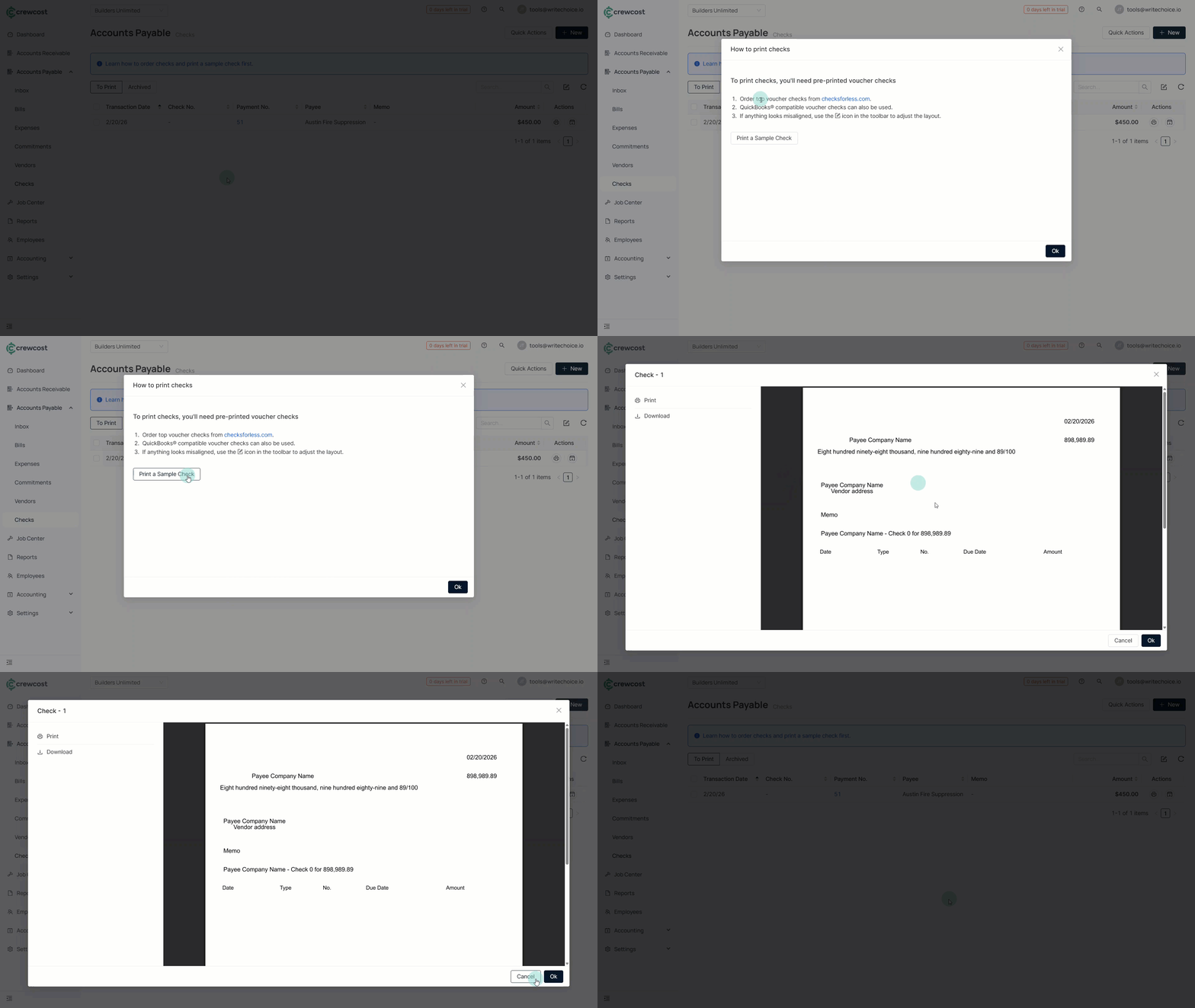
At the top of the Checks page, select **Learn how to order checks and print a sample check first**.
This informational window provides:
* A link to order top voucher checks from **checksforless.com**.
* A note that QuickBooks® compatible voucher checks can also be used.
* Guidance on adjusting the check layout if the printed check appears misaligned.
* The option to select **Print a Sample Check** to print a test check before using live check stock.
### See also
Keep exploring our platform by taking the next step:
* [Add a Payment](/documentation/daily-workflows/accounts-payable/add-a-payment.md): Learn how to record individual vendor payments.
* [Add Batch Payments](/documentation/daily-workflows/accounts-payable/add-batch-payments.md): Learn how to process multiple vendor payments at once.