> For the complete documentation index, see [llms.txt](https://docs.crewcost.com/llms.txt). Markdown versions of documentation pages are available by appending `.md` to page URLs; this page is available as [Markdown](https://docs.crewcost.com/documentation/daily-workflows/accounts-payable/add-a-subcontract.md).
# Add a Subcontract
You use this page to create subcontracts and record committed costs for work performed by vendors or subcontractors on a job. Subcontracts represent agreed or planned costs before bills or expenses are recorded, helping you manage commitments and keep job budgets aligned with expected costs.
To add a subcontract:
1. Go to **Accounts Payable**.
2. Select **Commitments**.
3. Select **+ New Commitment >** **Subcontract**.
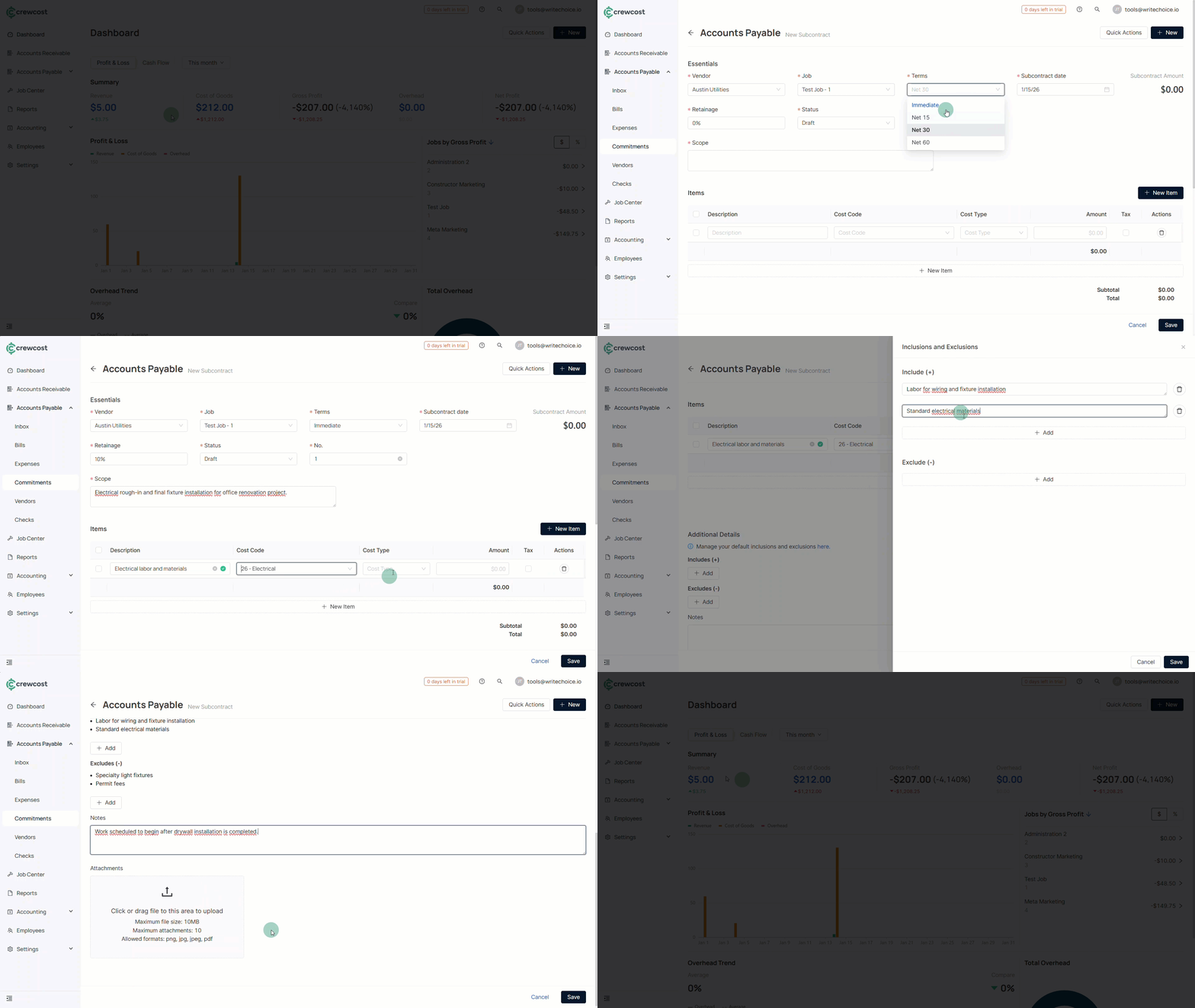
4. In **Essentials**, complete the required fields:
* **Vendor**: Select the vendor or subcontractor performing the work.
* **Job**: Select the job this subcontract is associated with so committed costs flow into the correct job budget.
* **Terms**: Select the payment terms for the subcontract.
* **Subcontract Date**: Select the date the subcontract is created or becomes effective.
* **Retainage**: Enter the retainage percentage to be withheld, if applicable.
* **Status**: Select the current status of the subcontract (for example, Draft).
* **No.**: Enter the subcontract reference number used for tracking.
* **Scope**: Enter a description outlining the scope of work covered by the subcontract.
5. In **Items**, add the subcontract cost details:
* **Description**: Describe the subcontracted work or service.
* **Cost Code**: Select the cost code used to categorize the subcontract cost.
* **Cost Type**: Select the cost type associated with the subcontract.
* **Amount**: Enter the committed amount for the subcontract item.
* **Tax**: Select whether tax applies. This field is optional and not required to create the subcontract.
* **Actions**: Remove an item if added by mistake.
6. Review the **Subtotal** and **Total** to confirm the committed amount.
7. In **Additional Details** (optional):
* **Includes (+)**: Add any items or work explicitly included in the subcontract.
* **Excludes (-)**: Add any items or work explicitly excluded from the subcontract.
* **Notes**: Add internal notes or additional information related to the subcontract.
* **Attachments**: Upload supporting documents such as agreements or scope details. Supported formats include PNG, JPG, JPEG, and PDF.
8. Select **Save** to complete the process.
Once saved, the subcontract is created under **Commitments** and the committed cost is reflected in the associated job for budgeting and cost tracking.
### See Also
Keep exploring our platform by taking the next step:
* [Add Expenses to a Job](/documentation/job-center/add-expenses-to-a-job.md): Learn how subcontract-related costs flow into job budgets.
* [Understand Job Budget Metrics](/documentation/job-center/understand-job-budget-metrics.md): Learn how committed costs affect job budgets and forecasting.